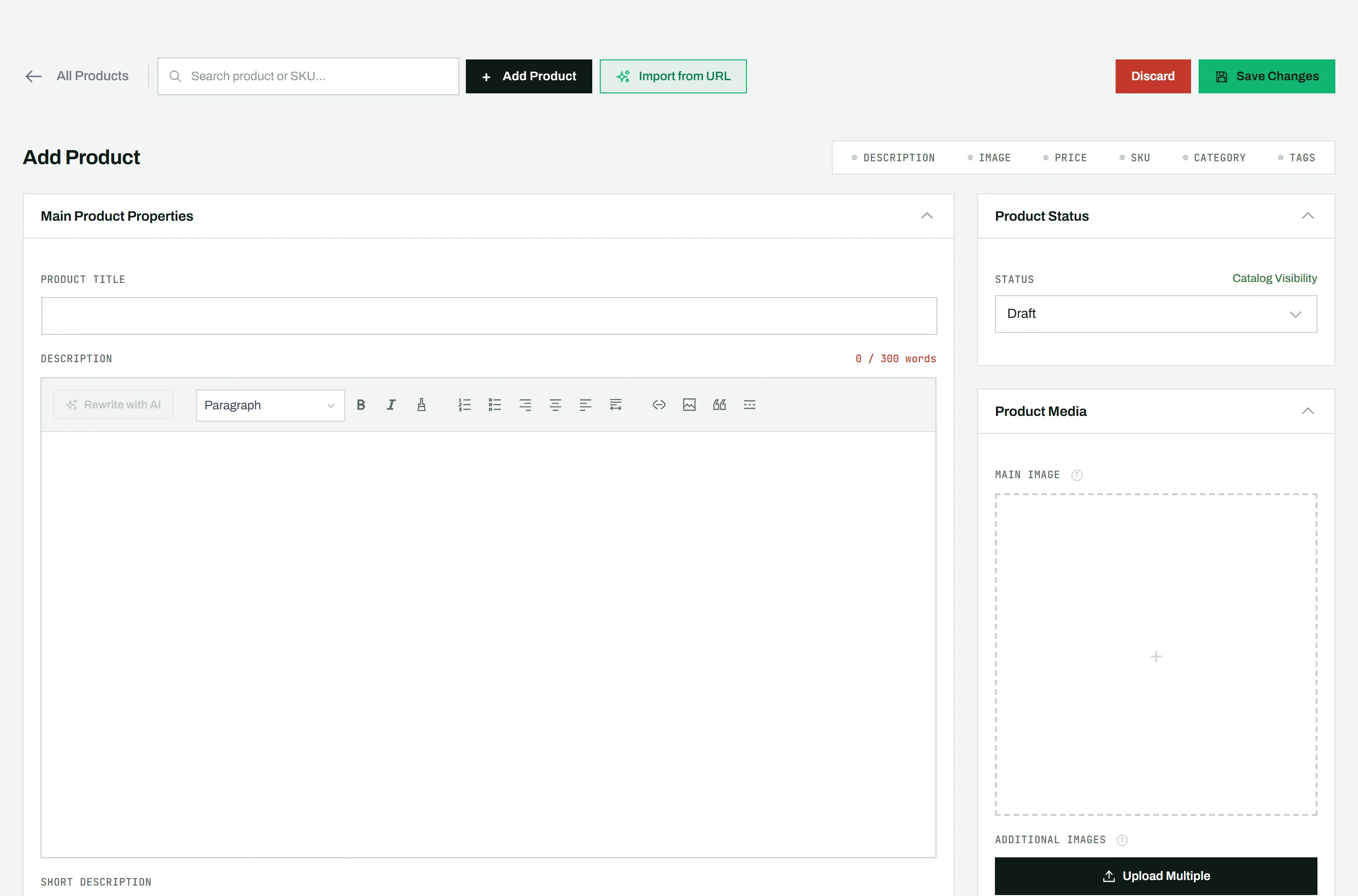
Creating a product in CataLord happens on one screen: title, description, images, pricing, and taxonomy are all in front of you at once, with a completion tracker guiding you as you go.
Create a product
- Go to CataLord > Products.
- Click + Add Product in the top-right corner.
- Fill in at least a product title (required).
- Add a description, images, price, SKU, and categories and tags as needed.
- Click Save Changes in the top-right corner.
The completion tracker
A completion tracker shows your progress: dots light up as you fill in Description, Image, Price, SKU, Category, and Tags. It is a quick way to see what a product is still missing before you publish.
Draft by default
New products are saved as Draft, so a half-finished product never appears in your store. Change the status to Published when you are ready to make it live; see product status and scheduling.
Tip: To create a product similar to one you already sell, duplicate it instead. To create many at once, add rows in Sheet Mode (Pro).