Upsells and cross-sells let you suggest related products: upsells appear on the product page as alternatives, and cross-sells appear in the cart as add-ons. Both are set in the Linked Products section.
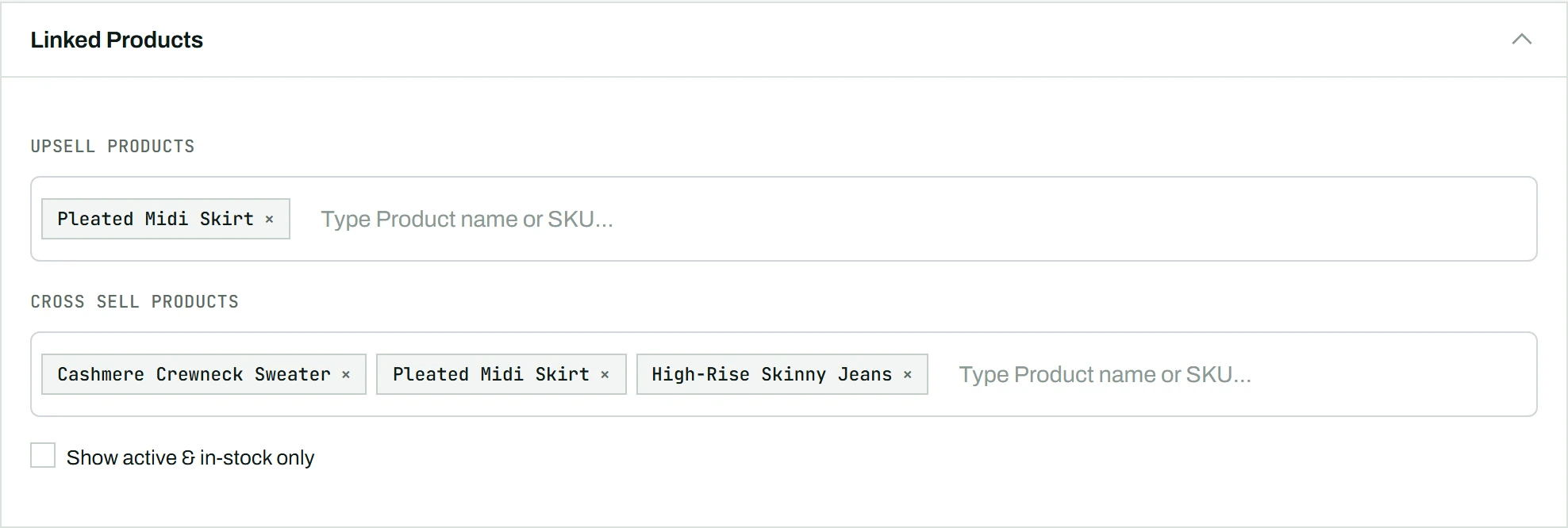
Adding upsells and cross-sells
- Scroll to the Linked Products section in the main content area.
- In the Upsell Products field, start typing a product name or SKU.
- Matching products appear in a dropdown; click one to add it.
- Repeat for as many upsells as you want, then do the same for Cross-Sell Products.
Each linked product appears as a chip; click its X to remove it.
Setting them on many products at once
You are not limited to one product at a time. Upsells and cross-sells can also be set across a whole selection:
- Bulk Edit (bulk actions): the Bulk Edit panel has upsell and cross-sell fields, so you can add the same linked products to every selected product in one pass (Pro removes the 10-product cap).
- Sheet Mode (Pro): upsells and cross-sells appear as their own columns in the spreadsheet, so each product can have a different set.
Tip: Check Show active and in-stock only to limit the search to products customers can actually buy.