Pro This feature is part of CataLord Pro, and it is included in the 14-day free trial.
Sheet Mode turns your product list into a full spreadsheet, so you can edit dozens of products at once, much like working in Excel. It is the tool for updating your existing catalog in bulk.
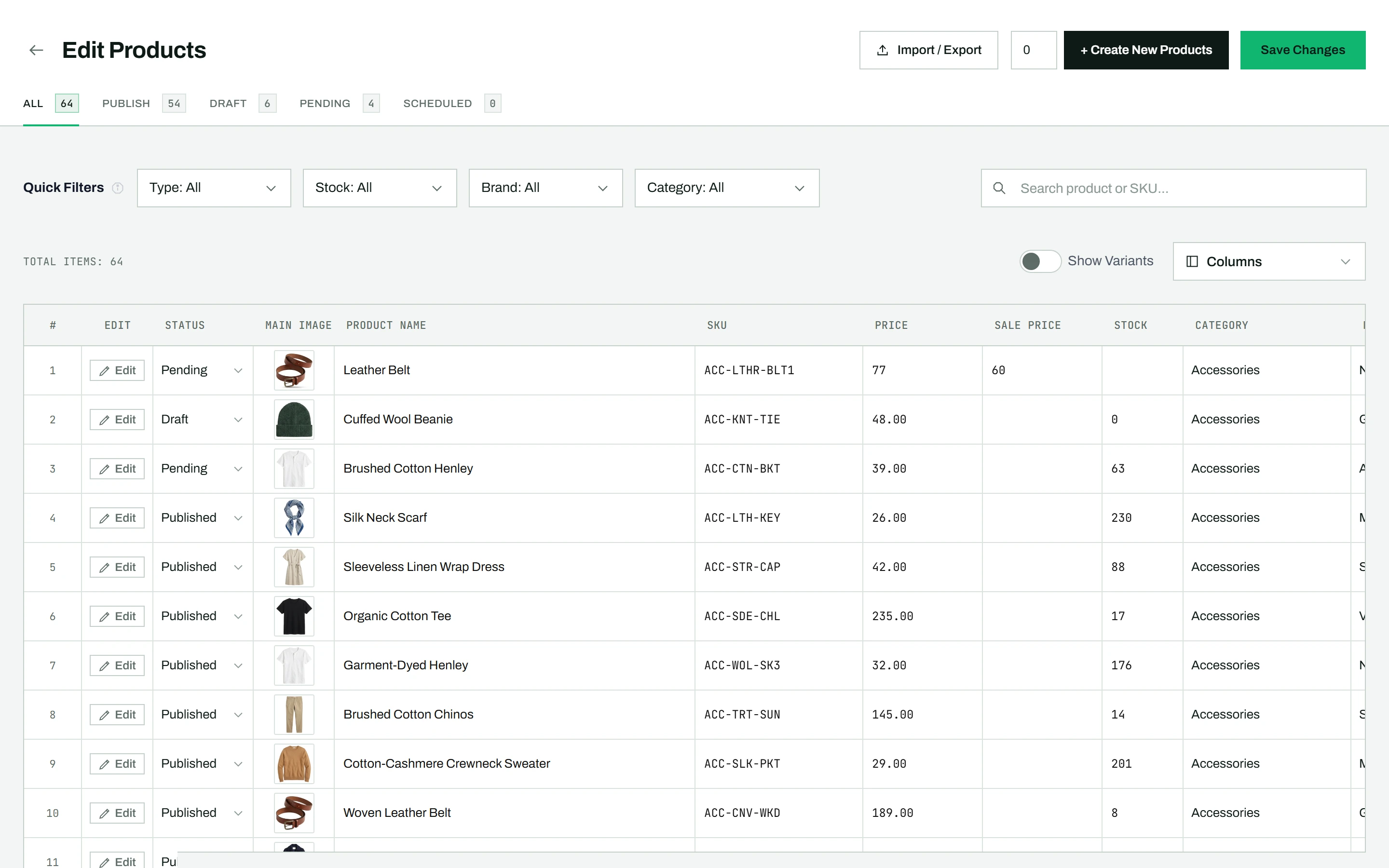
Open Sheet Mode
- Go to CataLord > Products.
- Click the Sheet Mode dropdown button in the top-right corner.
- Select Quick Table Edit.
Any filters active on the products page (search, category, stock, and so on) carry over into Sheet Mode automatically. To return to the normal view, click the back arrow in the top-left corner.
What you can do here
Once open, you can edit any cell, copy and paste, drag-fill a value down a column, create new products, and then save, undo, or discard everything at once.
Tip: Sheet Mode edits products you already have. To create a batch of brand-new products from a blank form instead, use Bulk Add. If you have the WP Sheet Editor plugin installed, a second option, “Open in WPSheet”, also appears in the dropdown.