The Status controls in the sidebar decide whether a product is live, when it goes live, and where it appears in your store.
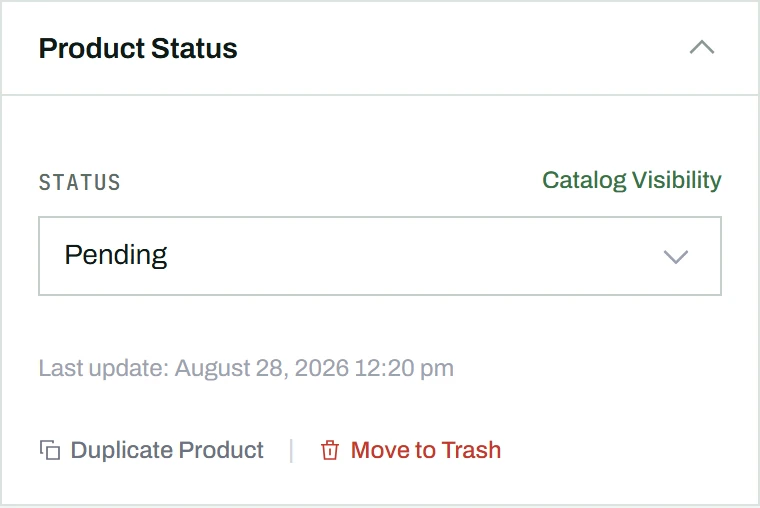
One save button, one status field
Unlike native WooCommerce, which splits publishing across separate Save Draft and Publish buttons (a common source of confusion), CataLord has a single Save Changes button and a separate Status field. You set the status you want, then save, and there is only ever one button to click.
Status
- In the sidebar, find the Status dropdown.
- Choose Published, Draft, Pending, or Scheduled.
- If you choose Scheduled, date and time fields appear; set when the product should go live.
- Click Save Changes.
Catalog visibility
Click Catalog Visibility in the status section to control where the product appears:
- Shop and search results: visible everywhere (the default)
- Shop only: appears in shop and category pages but not search
- Search results only: appears in search but not shop pages
- Hidden: reachable only through its direct URL
Featured product
Check Set as a featured product to mark it as featured, which “Featured Products” widgets and shortcodes use.
Tip: To change the status of many products at once, for example publishing a batch of drafts, use bulk actions.