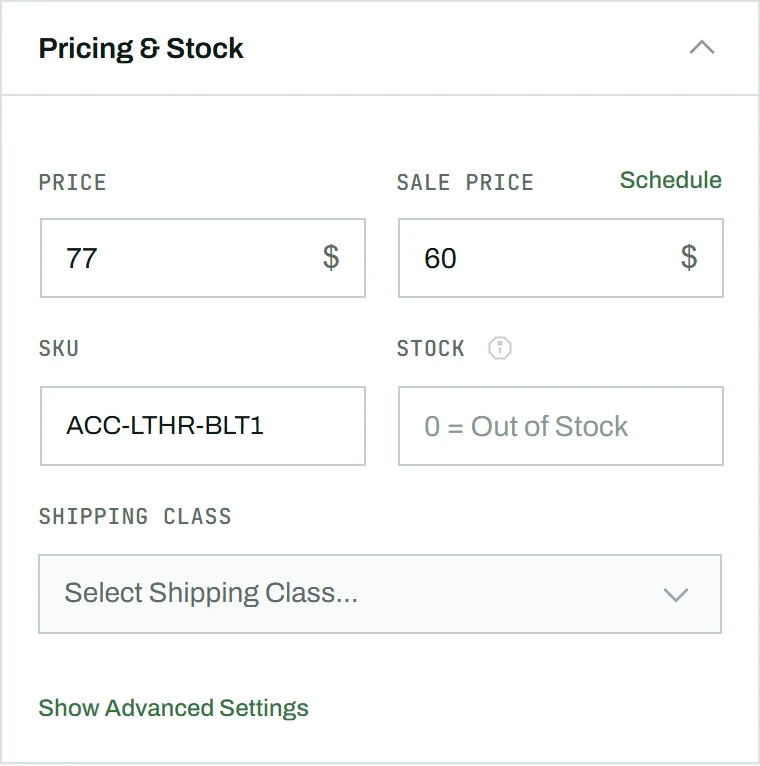
SKU and stock are set in the sidebar’s Pricing & Stock panel. CataLord checks your SKU for duplicates as you type, so you catch a clash before you save rather than after.
SKU
Enter a unique SKU (Stock Keeping Unit) in the SKU field. CataLord validates in real time: if the SKU is already used by another product, a warning appears with the conflicting product’s name, ID, and a link to edit it. WooCommerce only rejects a duplicate SKU when you try to save, so this catches the problem earlier.
Stock
CataLord makes stock simpler than native WooCommerce. There is no “Manage stock?” checkbox to tick first: the single stock field decides everything, and CataLord sets the underlying WooCommerce flags for you based on what you enter.
- Leave empty: the product shows as “In Stock” with no quantity tracking.
- Enter 0: the product is marked “Out of Stock”.
- Enter a number: stock management is enabled automatically and that quantity is tracked and counted down as orders come in.
Note: For variable products, stock is managed per variation, not on the parent product.