The Attributes panel in the product sidebar shows what the product already has, suggests the attributes that similar products use, and finds any other attribute in a few keystrokes. You add only what this product needs, in a couple of clicks, and the rest of your store’s attributes stay out of the way.
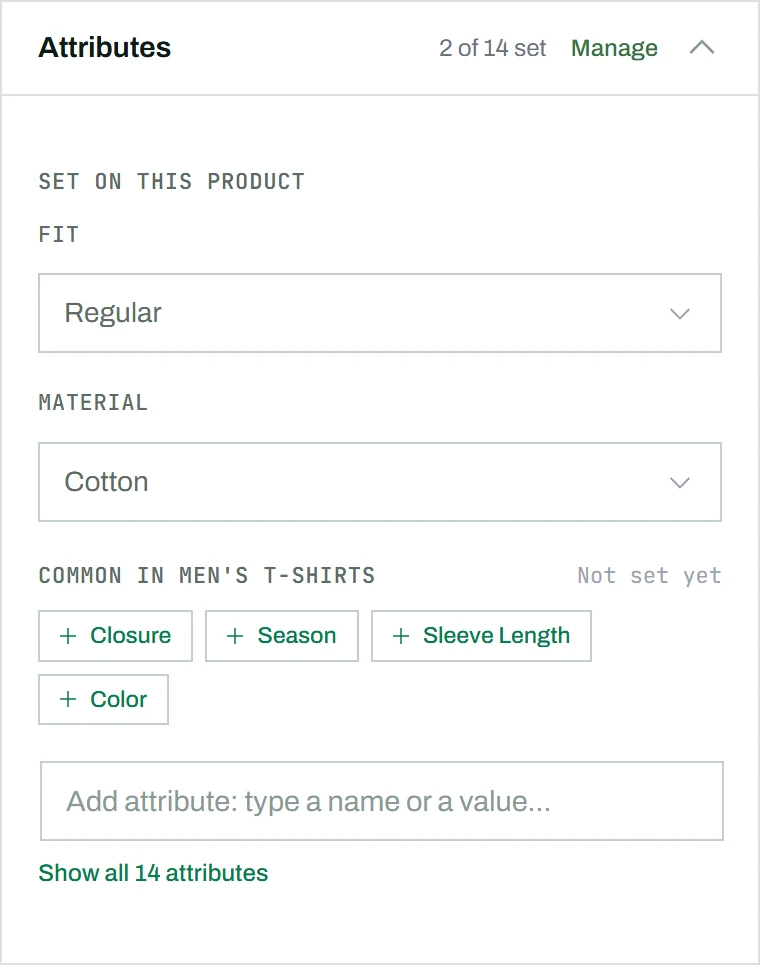
What the panel shows
- Set on this product: the attributes that already have a value, each with its values. The panel header counts them, for example 2 of 14 set.
- Common in your category: suggested attributes, one click each.
- Add attribute: a search field for any other attribute, by name or by value.
- Show all: the complete list of your store’s attributes, when you want to browse it.
This layout appears once your store has more than six global attributes. With six or fewer, every attribute is listed in the panel directly.
Add a suggested attribute
- Assign the product’s category first. The suggestions follow your category choice right away, no save needed.
- Click a suggestion, for example + Fit. The attribute moves up to Set on this product and its list of values opens.
- Tick one or more values, then click anywhere outside the list to close it.
How the suggestions are chosen
CataLord looks at the other products in the same category and offers the attributes they actually use. An attribute is suggested when at least two products in the category carry it and it appears on at least 10% of them. The most common come first, up to eight. Attributes already set on the product are never suggested.
When a product sits in a category and its parent, for example Men and Men’s T-Shirts, the suggestions come from the most specific one, where the products are most alike. A product in two separate categories gets a titled group for each.
A new product with no category yet shows Recently used instead: the attributes you set most recently in this browser.
Search for any other attribute
- Click the Add attribute: type a name or a value field.
- Type part of an attribute’s name (mat finds Material) or the start of a value (cot finds Material through Cotton).
- Pick a result with the mouse, or with the arrow keys and Enter. When you searched by a value, the attribute opens with that value already searched for.
- Tick the value.
Attributes already on the product do not appear in the results. Their values are edited in their own row.
Change an attribute’s values
Click the attribute’s row to open its value list. The values already ticked appear first, above Other values, so you can untick or replace them without scrolling through a long list. Ticking and unticking keeps the rows in place until you close the list.
Add a value that does not exist yet
In an attribute’s value list, type in the search box. If nothing matches, choose Create: the new value is added to the attribute and ticked on this product. For an attribute that a variable product uses for its variations, the list searches only; values for those are added in the Variants section.
Attributes are global
Every attribute and value belongs to the whole store. Create Material: Cotton once and pick it on any product. Every product that uses Cotton points to the same value, so renaming it on the attributes page updates them all.
Attribute changes are saved with the product when you click Save Changes.
Tip: Rename attributes, add descriptions to values or delete them on the attributes page (Pro); the Manage link in the panel header opens it. To build variations from attributes, see how to create a variable product.