Global attributes are the reusable building blocks of variable products, such as Color or Size and their values. The Attributes tab lets you browse them, and, with Pro, create and manage them without leaving CataLord.
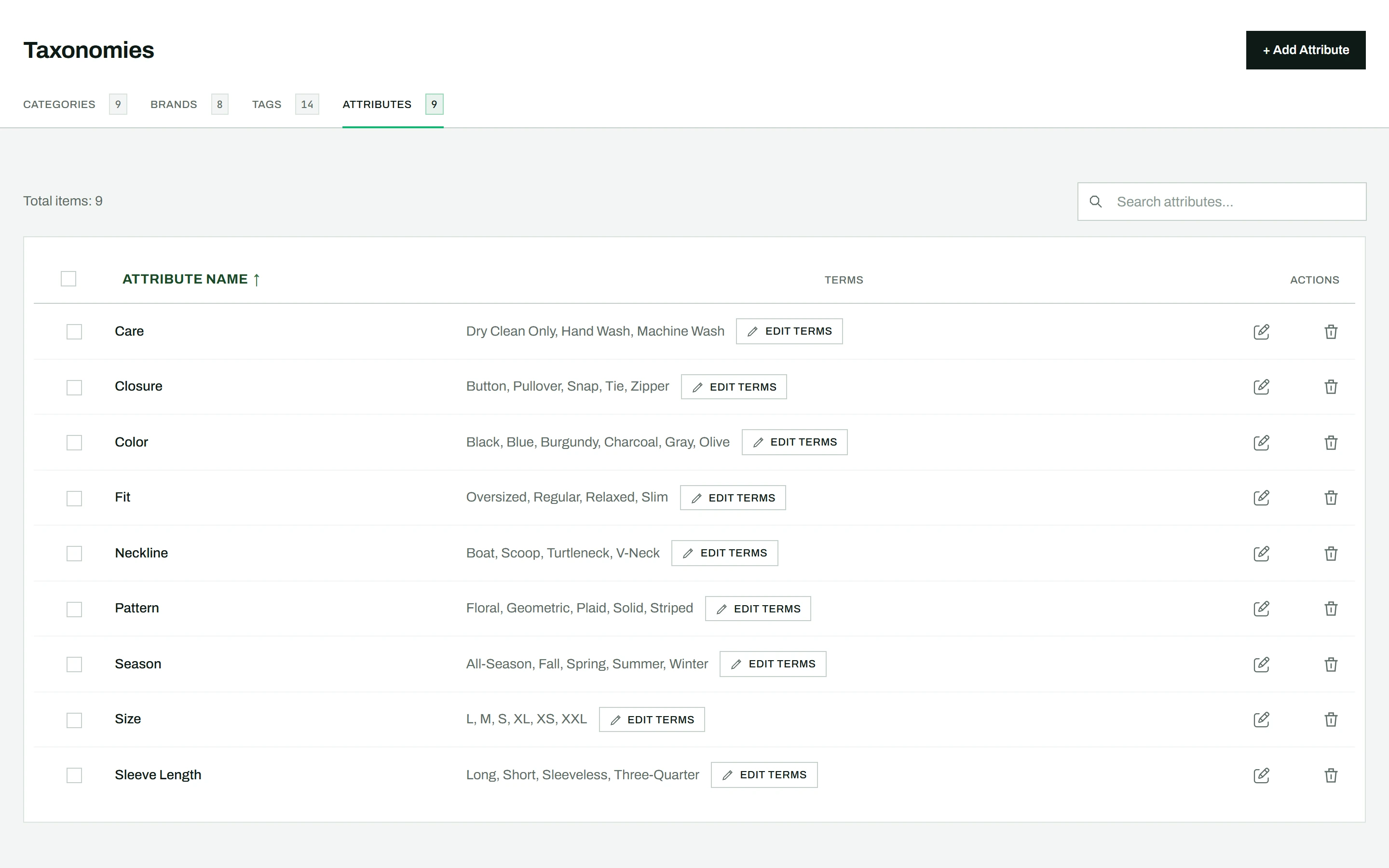
Go to CataLord > Taxonomies and click the Attributes tab. Browsing your attributes and their values is available in the free plugin. Creating, renaming, and deleting attributes and their terms, including the color-swatch picker, is part of CataLord Pro.
Viewing attributes
The default view shows all attributes in a table with a preview of their terms (values).
Creating an attribute
- Click + Add Attribute.
- Enter a name (for example “Color”) and optionally a slug.
- Click Save Changes.
Managing attribute terms (values)
- Click the attribute’s Edit Terms button. (Clicking the attribute’s name opens its own window instead, to rename it or change its slug.)
- The page splits into two panels: the attribute list on the left, terms on the right.
- Click + Add New Term to create a new value, or the edit icon on a value to change it.
- Enter a name, optional slug and description, and optionally pick a color swatch using the built-in color picker.
Deleting attributes or terms
Before deleting, CataLord checks whether the attribute or term is used in product variations. If it is, a warning shows how many products are affected and lists up to three product names. You can still proceed after confirming. Click the X at the top of the terms panel to return to the full-width attribute list.
Tip: Once an attribute exists, use it to create a variable product; the attribute name appears in the Variant Name autocomplete. To give a product its attributes, see how to assign attributes to a product.