Pro This feature is part of CataLord Pro, and it is included in the 14-day free trial.
The AI Image Editor lets you transform a product image with plain-language instructions, or crop it by hand, all in one modal. It uses Google’s Gemini image model, so you need your own Gemini API key (BYOK) saved in the CataLord settings. Edited images are saved as WebP.
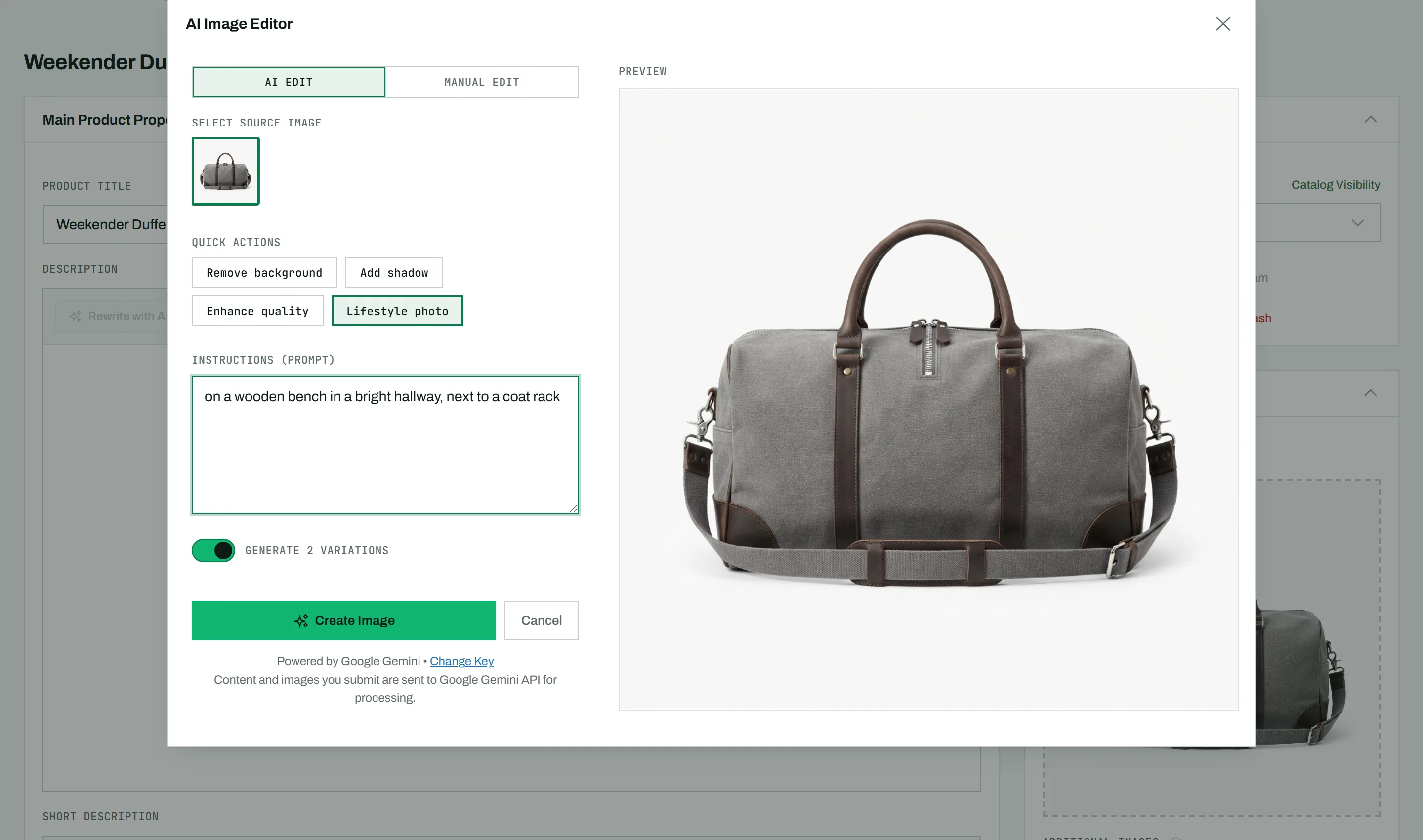
Open the editor
- Open a product in the CataLord editor.
- Click the edit control on one of the product images to open the AI Image Editor.
The modal has two tabs: AI Edit and Manual Edit. A large canvas on one side shows the image you are working on.
AI Edit
- Pick the source image from the carousel.
- Type a free-text instruction, for example “put the product on a clean white background”.
- Or click a Quick Actions chip, such as Remove background, Add shadow or Enhance quality, to add a ready-made instruction. These chips and free text can be combined. Hover over a chip to see what it does.
- Optionally turn on Generate 4 variations. The results then appear in a selectable 2×2 grid, and you keep only the ones you check.
- Generate the image, then review the result on the canvas.
To check the edit against the source, use hold-to-compare: press and hold on the canvas to see the original, and release to return to the edited version.
Lifestyle photo
The Lifestyle photo chip shows the product in use, in its natural place: a sofa in a living room, a kettle on a kitchen counter. The result is a square, high-resolution photo, and the product itself stays exactly as it is in the source image.
- Click Lifestyle photo. It replaces the other Quick Actions chips for this edit.
- Optionally type the scene you want in the instruction box, for example “on a wooden desk in a bright home office”. Without text, the AI picks a fitting scene from the product’s name, category and attributes.
- Generate. A lifestyle photo takes a little longer than other edits, so with variations turned on the switch reads Generate 2 variations instead of 4.
Save your work
Click Save to Gallery (labeled Save selected when saving from the variation grid). Saving keeps the editor open and shows a confirmation toast, so you can keep editing. Any generated variations you do not keep are discarded automatically.
Manual Edit
Switch to the Manual Edit tab to crop an image yourself. Drag the crop box and its handles, or pick an aspect-ratio preset (Free, 1:1, 4:3, 16:9, 3:4, or 9:16). Use Reset to start over, then Save to Gallery to store the cropped WebP.
Tip: Turn on Generate 4 variations when you are exploring a look. You can zoom into any cell, keep the best ones, and the rest are cleaned up for you.
Server tip: Edited and cropped images are saved as WebP using ImageMagick when your server has it, which preserves more quality than PHP’s GD fallback. If your host lacks Imagick, enabling it is worthwhile for the sharpest results.