Pro This feature is part of CataLord Pro, and it is included in the 14-day free trial.
Fill with AI reads a product you already have, its own gallery images and existing data, and writes a fresh description for it in one click. When a supported SEO plugin is active, it also drafts the SEO title, meta description, and focus keyword at the same time. Everything is written in your store’s language and in the AI voice you have saved, and you can review the result before keeping it.
Not sure which AI tool you want? Fill with AI reads the product’s own images and data to write from scratch. AI Rewrite only rewrites the description text you already have, and Import from URL builds a product from an external web page instead.
Before you start
Fill with AI uses Google’s Gemini API. You bring your own Gemini API key (BYOK) and save it in the CataLord settings. If no key is saved, no AI call is made.
Fill a product
- Open the product in the CataLord editor.
- Click Fill with AI.
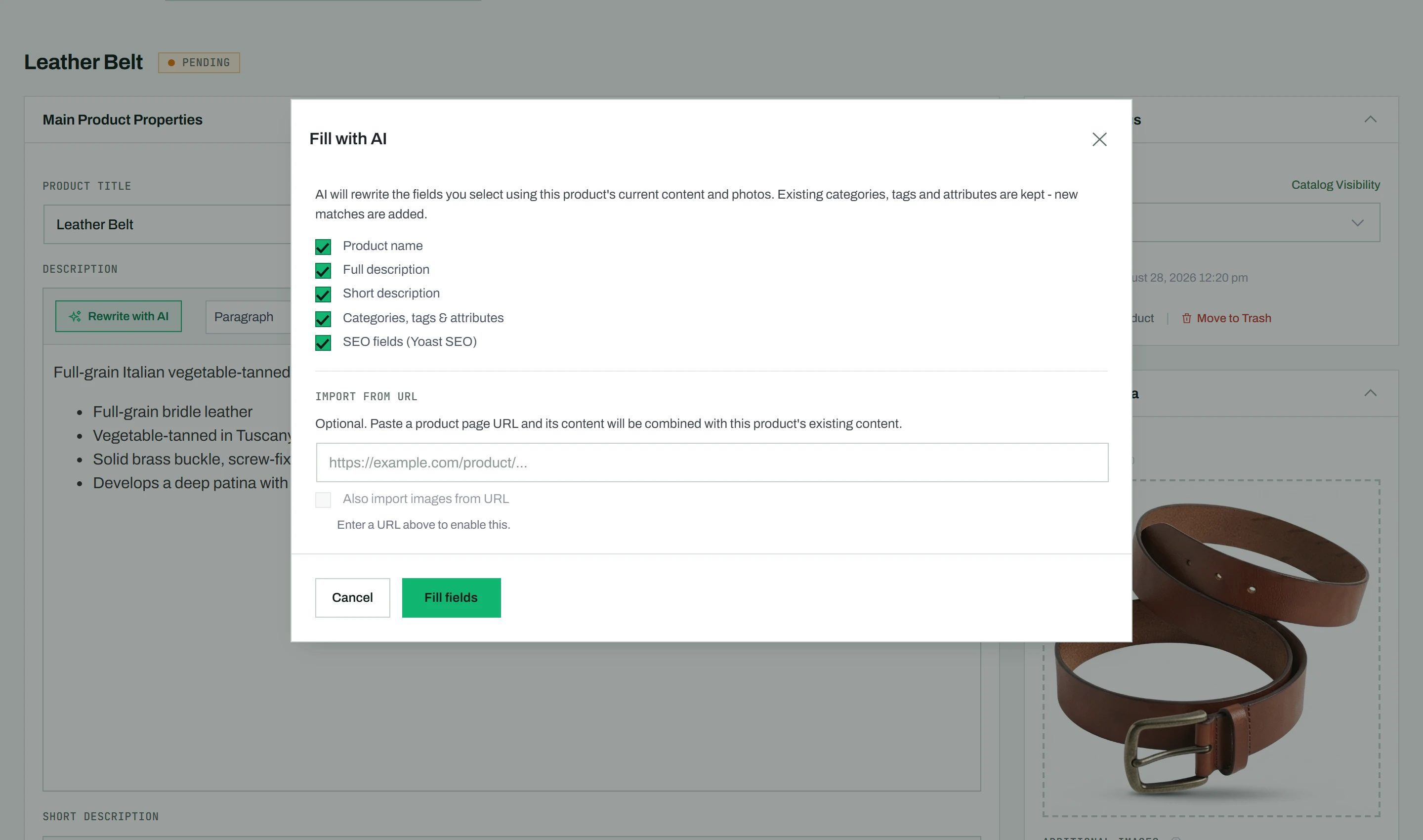
- In the dialog, keep the field groups you want to generate ticked. When an SEO plugin is active, an SEO fields option appears and is ticked by default.
- Start the fill. CataLord reads the product’s images and data, then writes the new content.
- Review the filled fields. The description and any SEO fields are overwritten with the new text.
If the result is not what you wanted, use the Undo link to restore the previous content. Nothing is permanent until you click Save.
Add a reference page
When the product itself holds little information, give the AI a page to learn from. Paste the address of a product page (for example the manufacturer’s page) into the Import from URL field of the dialog. CataLord reads that page and combines it with the product’s existing content. Where the two disagree, the facts already on your product win, such as a pack size or an accessory written in its name.
- The page is read the same way as in Import from URL: the full spec list, a linked data sheet, and pages in older encodings.
- With Categories, tags & attributes ticked, the summary shows how many labelled spec rows the page had and how many came over, and names any row that did not.
- Tick Also import images from URL to bring in the page’s product photos. Small images (both sides under 400 px) are skipped, and each photo is kept only in its largest size.
If the page cannot be read, the fill still runs on the product’s own content and the summary tells you so.
Tip: To control the tone and style of the writing, save a custom AI prompt in the CataLord AI settings. Fill with AI uses that same saved voice, so every product reads consistently.