CataLord’s AI features use Google’s Gemini API on a bring-your-own-key (BYOK) basis: you provide your own Gemini API key, and requests go from your site directly to Google. There is no CataLord AI subscription and no usage billing from CataLord.
Setting up your key
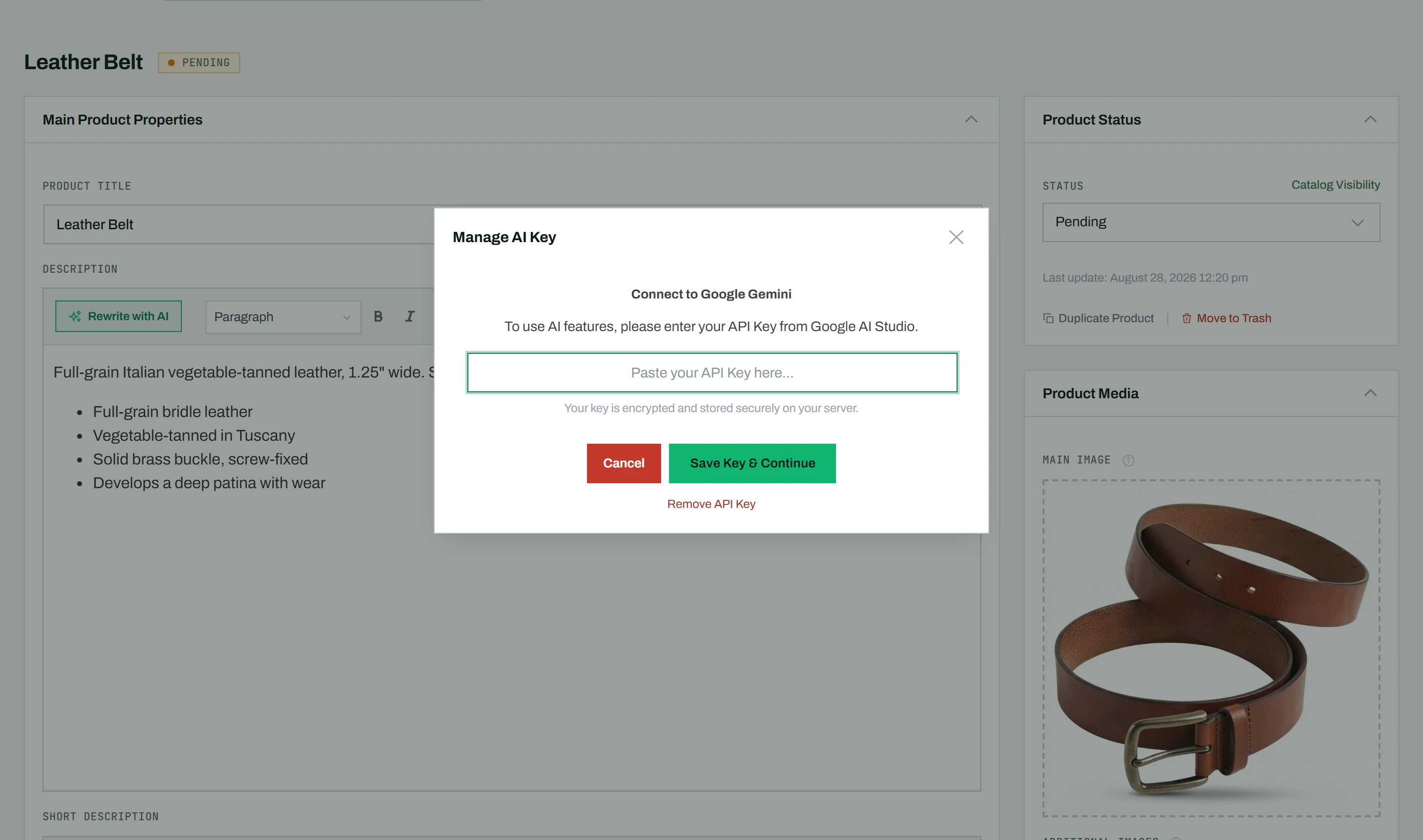
The main home for your key is the Settings screen (CataLord > Settings), where the Google Gemini API key field sits near the top. You can also add it inline the first time you reach for any AI feature, without leaving what you are doing, so you are never blocked mid-task.
- Open CataLord > Settings, or open any AI feature (the AI Rewrite button or the AI Image Editor) and use its inline key prompt.
- Enter your Google Gemini API key and submit. You can get one free from Google AI Studio.
- The key is validated against the API before it is saved, then stored encrypted.
- Once saved, you do not need to enter it again; every AI feature uses the same key.
Changing or removing the key
- In Settings, or in any AI modal, click Change API Key.
- Enter a new key to replace the old one, or click Remove stored API key to delete it entirely.
Note: Only Administrators can manage the API key. Without a saved key no AI call is made, and the rest of CataLord works normally. The same key powers AI descriptions, Fill with AI, and AI image editing.