CataLord can generate and rewrite product descriptions with Google Gemini AI, right in the editor. It is part of the free plugin; you supply your own Gemini API key.
Getting started
- Open any product in the CataLord editor.
- Write some content in the Description field, even a rough draft or a few bullet points.
- Click the AI Rewrite button in the editor toolbar.
First-time setup
Enter your Google Gemini API key when prompted. You can get one free from Google AI Studio. The key is validated and stored encrypted, and you only do this once. See managing your AI API key to change or remove it later.
Generating a description
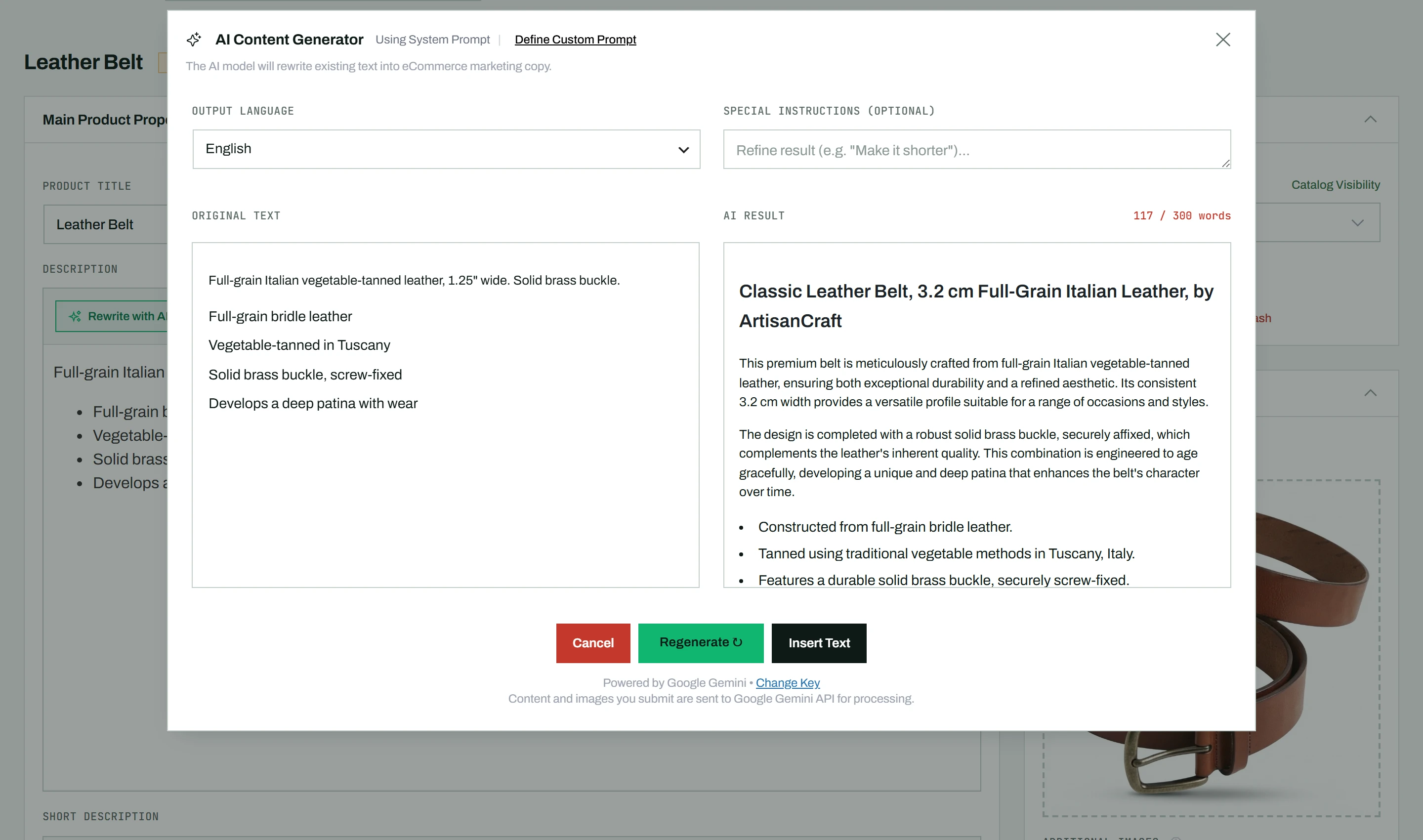
- Choose a language from the dropdown (Hebrew, English, Spanish, French, and more).
- Optionally add instructions (for example “Focus on durability” or “Keep it under 100 words”).
- Click Generate.
- Review the result in the side-by-side comparison: your original on the left, the AI version on the right.
- Edit the AI text directly in the right panel if needed.
- Click Insert to replace your description, or Cancel to discard.
Iterating
After the first generation, the button becomes Regenerate. Add new instructions and regenerate to refine the result.
Tip: To set the tone and style once for every product, save a custom AI writing prompt (Pro). To write from a product’s own images and data instead of rewriting existing text, use Fill with AI (Pro).