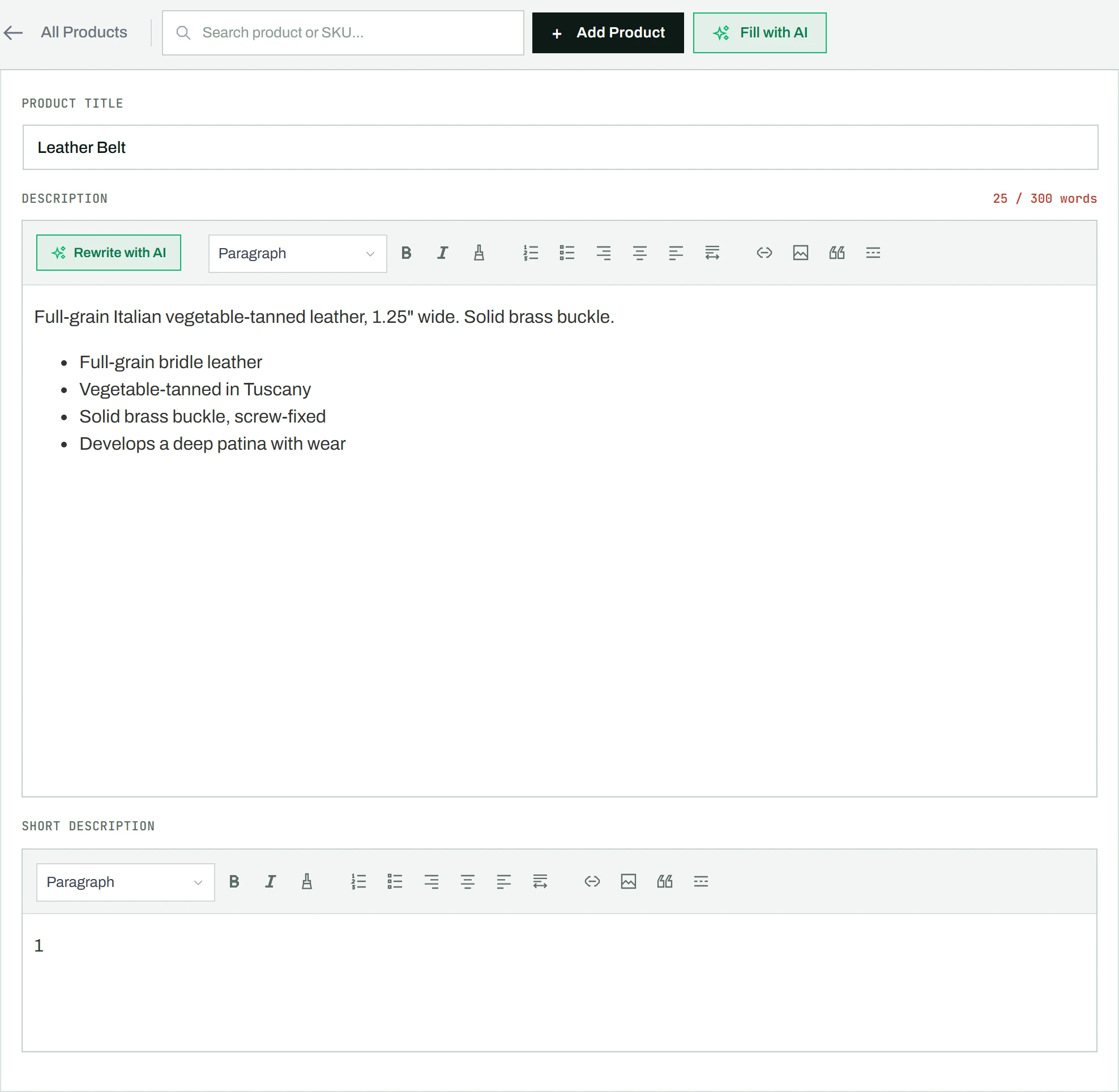
The product editor has three text areas: the title, the main description, and the short description. Each one appears in a different place on your storefront.
Product title
Type the product name in the title field at the top of the page. The title is required; you cannot save without it.
Product slug (web address)
- Click Slug at the end of the Product Title label. A Slug field opens under the title.
- The start of the product’s address is shown inside the field for reference. Edit the part after it.
- Click Save Changes.
What you type is turned into a valid slug, with dashes for spaces, and kept unique: if another product already uses it, a number is added. The field shows the slug exactly as it was saved. Clear the field to build the slug from the title again. A draft without a slug shows Created from the title when published. The field stays open or closed the way you left it.
The old address keeps working: visitors who follow it reach the new one. With Yoast SEO Premium, the change also creates a redirect in Yoast’s redirect manager, and CataLord confirms it after the save.
Product description
Use the rich-text editor below the title. The toolbar has the usual formatting: bold, italic, lists, links, and more. This is the long description that appears in the Description tab on the product page.
Short description
A second, smaller editor sits below the main description. This text appears above the add-to-cart button on the product page, so keep it brief: one or two sentences is ideal.
Tip: Click AI Rewrite in the toolbar to generate or improve a description with AI, or use Fill with AI (Pro) to write one from the product’s own images and data.