Pro This feature is part of CataLord Pro, and it is included in the 14-day free trial.
Import from URL turns a single product page into a filled-out product. Paste a link, and CataLord reads the page, structures it with AI, and populates the editor for you, including the full spec list and the product images.
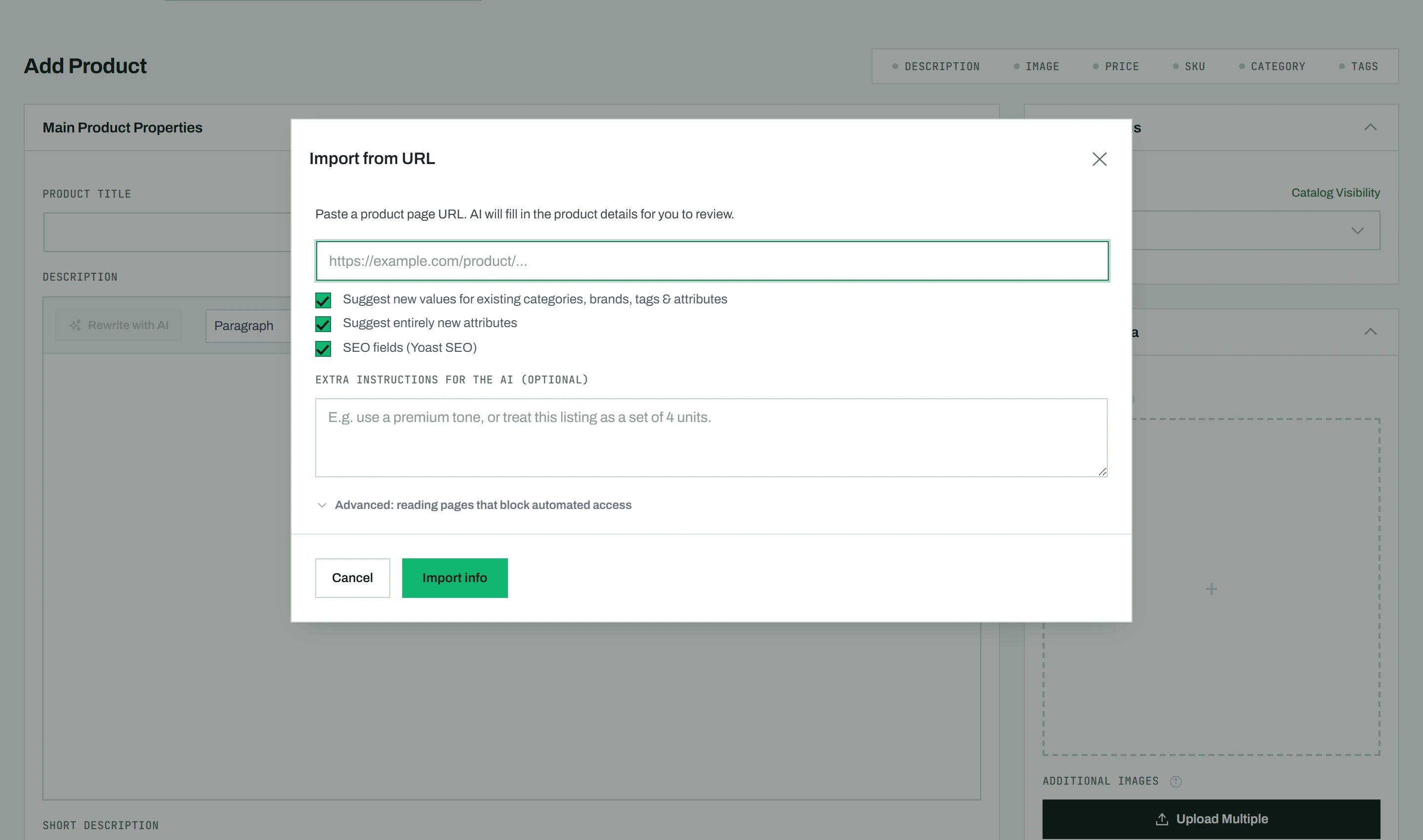
Import a product page
- Open the product editor in CataLord > Products.
- Use the Import from URL button at the top of the editor to open the import window.
- Paste the product page link and start the import.
CataLord fetches the page, extracts what it can, and uses AI to structure the result. The editor then auto-fills with the product title, short and long descriptions, categories, brand, attributes and specs, and the product images import into the gallery. The long description is written with your saved AI writing prompt, so it follows your store’s format.
What CataLord reads from the page
- The page text, without menus, cookie notices and other page chrome, so the product details are what the AI sees.
- Spec tables, including spec lists that the site draws from data inside the page rather than as a visible table.
- The technical data sheet: when the page links to a data sheet PDF, CataLord reads it too and adds the specs it holds. Safety data sheets and user manuals are left out.
- Pages in older encodings, such as many long-standing Hebrew store platforms, come through as normal text.
Check what came over
When the import finishes, the summary line at the top of the editor reports the result, for example: Specs imported: 24. Labelled spec rows on the source page: 26 found, 25 of them imported.
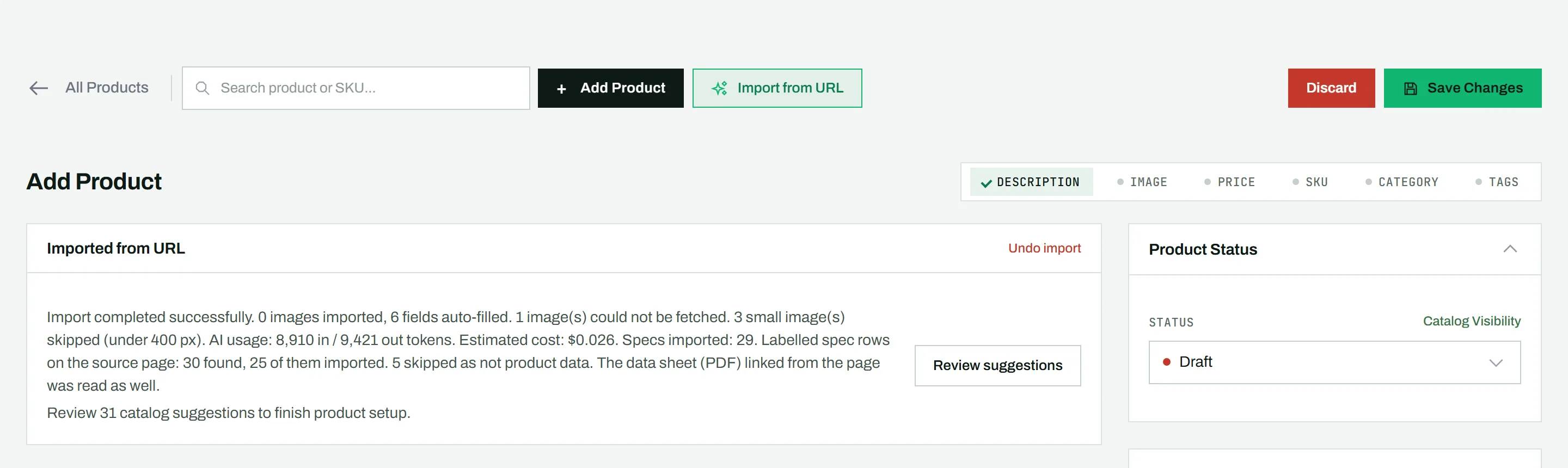
- Labelled spec rows are the label and value pairs CataLord found on the page (tables, spec lists). The count lets you see at a glance that the spec sheet came over in full, without opening the source page.
- Rows the AI judged not to be product data, such as delivery fees or the brand name, are reported as skipped. Hover over the summary line to see them.
- If a row did not come over, a warning names it, so you know exactly what to add by hand.
- When a data sheet was read, the summary says so.
Some pages describe the specs in running text rather than as labelled rows. The AI still extracts them, and the count then covers only the labelled rows.
Product images
CataLord brings in the product photos and leaves out what is not one:
- Images with both sides under 400 px (thumbnails and icons) are skipped. An image of 500 by 300 px is imported.
- When the page serves the same photo in several sizes, only the largest copy is kept.
- Images from the site header, menus and footer are ignored.
The summary reports how many small images and duplicate sizes were skipped.
Accept or reject suggestions
Some findings are not an exact match for your existing catalog. These appear as suggestion chips next to the relevant fields, for example a new category, brand, tag, or attribute value. You accept the ones you want and reject the rest, so nothing is created without your say-so.
Cross-language matching
CataLord matches what it reads onto your existing catalog vocabulary, even across languages. If a page lists a brand or attribute in one language and your store already uses it in another, the importer maps it to your existing term instead of creating a duplicate.
Sites that block automated access
Some stores sit behind a bot wall that your server cannot read. CataLord recognizes these pages and tells you plainly that the site blocks automated access, instead of importing the wall itself. Two optional settings, both off by default, can help. You find them in the import window under Advanced: reading pages that block automated access:
| Setting | What it does | What it sends |
|---|---|---|
| Allow CataLord to send blocked page addresses to r.jina.ai | An external reading service, Jina Reader, opens the page for your server. | Only when the direct read fails or returns a page with almost no readable text: the page address, to r.jina.ai. |
| Allow CataLord to send blocked page addresses to Google | Gemini reads the page itself. | Only when the direct read returns almost nothing: the page address, to Google, with your own API key. |
Either way, the long description is still written with your saved AI writing prompt. Some sites block every automated reader. For those, copy the specs into the product or use another source.
Undo in one click
If the result is not what you wanted, a single Undo reverses the import, clearing the auto-filled fields and removing the imported images, so you can start clean.
Tip: You can also paste a product URL directly into the editor. CataLord recognizes it and opens the import window pre-filled with that link. To write content from a product you already have instead of an external page, use Fill with AI.