Pro This feature is part of CataLord Pro, and it is included in the 14-day free trial.
The CSV importer walks you through a short wizard so you can create products in bulk from a spreadsheet, with column mapping, image downloading, optional AI enrichment, and error recovery built in.
Start the importer
- Go to CataLord > Products.
- Open the Import / Export tools and choose to import a CSV file.
- Upload your CSV file to begin. The wizard opens on the Upload step.
Map your columns
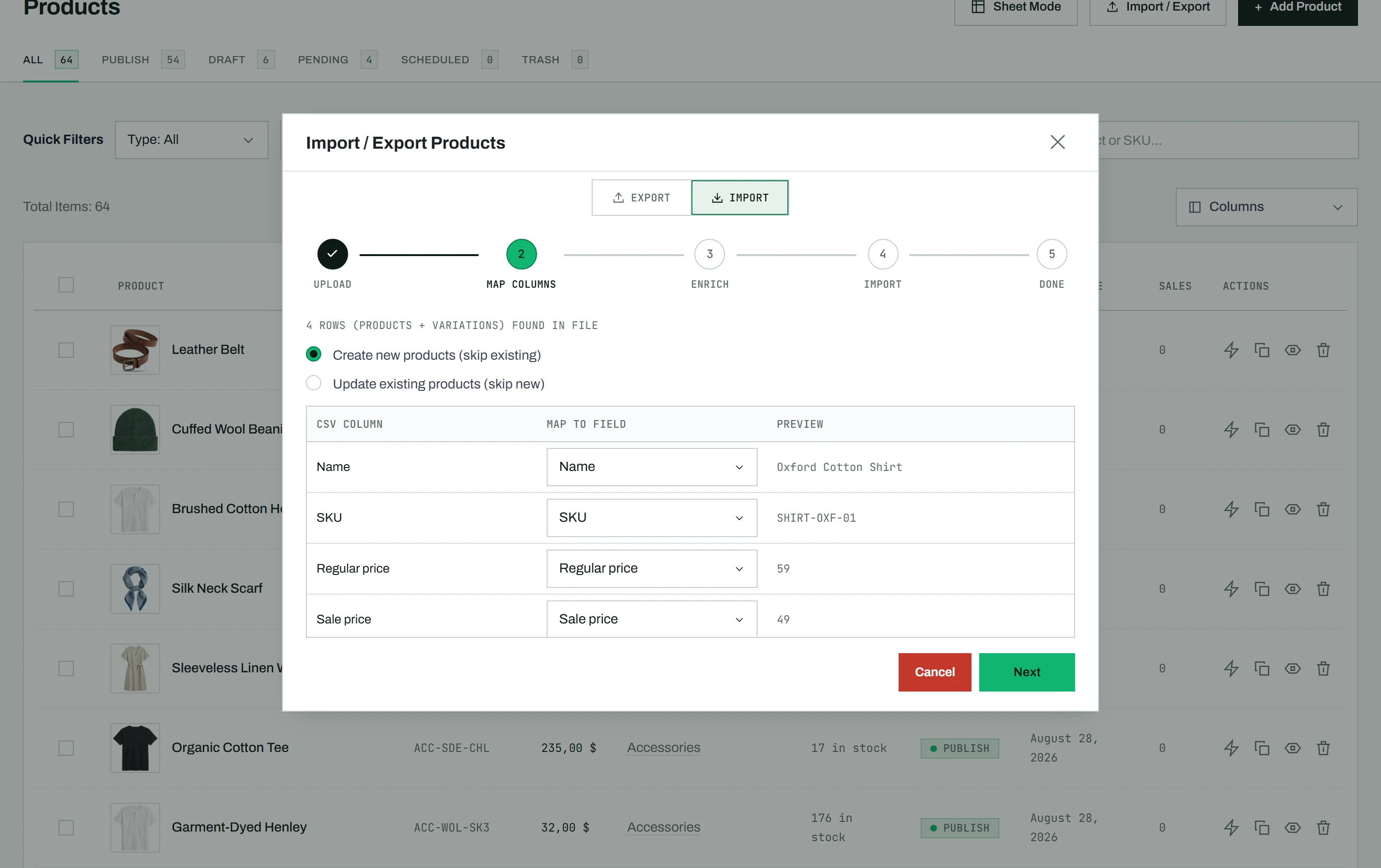
On the Map step, CataLord reads your file’s header row and lines each column up against a product field. Confirm or adjust each match so the importer knows where every value belongs.
- Standard fields like name, SKU, regular price, and descriptions map to their WooCommerce equivalents.
- Any column that holds an image URL can be mapped so those images are downloaded and attached to the product.
- ACF (Advanced Custom Fields) columns can be mapped to their matching custom fields, so your ACF data lands in the right place.
Create new or update existing products
On the Map step you also choose what the import does with products that already exist in your store:
- Create new products adds the rows that do not exist yet and skips the ones that do.
- Update existing products changes the products that exist and skips the ones that do not.
A row is matched to an existing product by its ID column first, then by SKU, and in update mode by an exact product name when neither is present. A variation row is matched by ID or SKU, or by its parent plus its attribute values. A file exported from WooCommerce or from CataLord carries the ID and SKU columns, so it always matches cleanly. A variation row that does not name every attribute of its parent and could fit more than one variation is skipped with a warning rather than guessed.
Empty cells keep the current value. In update mode, a blank cell means “leave this field as it is”. This is different from WooCommerce’s own importer, which clears a field when the cell is blank. So a sheet that only holds a SKU column and a price column updates prices and touches nothing else, even if the other columns are missing entirely. The flip side: you cannot clear a value, such as a sale price or a tag, through a CSV. Clear it in the product editor or in Sheet Mode instead.
The images column is the one place a filled-in cell replaces the whole list: whatever it names becomes the product’s featured image and gallery, in that order. An empty images cell leaves the product’s images alone.
Enrich with AI (optional)
Between mapping and importing, the wizard offers an optional Enrich step that uses AI to fill missing content as your products are created, turning a thin spreadsheet into a set of complete drafts. It is off by default. When you turn it on, you choose which fields the AI may write: product name, short and long description, categories, tags and attributes (matched to terms you already have), and SEO fields when Yoast or Rank Math is active.
CataLord picks the enrichment mode from what your file contains: it scrapes a source URL column when present, enriches from the other cells in the row when a description is available, or runs a live Google web search when a row has only a name. A cost and time estimate is shown before it runs. See enrich products with AI during import for the full walkthrough.
Run the import
A new product takes the status in its Published column (1 published, 0 private, -1 draft, the same values WooCommerce’s exporter writes). A row without that column is published straight away, so if you want to review products before they go live, add a Published column set to -1. When AI enrichment is on, every new product is created as a draft regardless, so you can check the generated content first.
The import runs in batches, one chunk of rows per request, which keeps it within your host’s time limits even for large files.
If a batch hits an error, the importer pauses instead of failing the whole run. You can resume from where it stopped, so a single bad row will not force you to start over.
Review per-row warnings
When a row references a tax class or shipping class that does not exist in your store, the importer records a per-row warning rather than silently dropping the value. The same goes for a variation that names an attribute its parent does not have, or a value the parent did not offer yet: the attribute is skipped, or the value is added to the parent, and the row tells you which. Check the summary at the end to see which rows need a follow-up.
Tip: A CataLord export re-imports cleanly, so exporting a few products first is an easy way to see the exact column format the importer expects.