CataLord’s bulk action bar lets you update many products at once, and it goes far beyond WooCommerce’s native bulk editor. You can change status, stock, pricing, taxonomies, and linked products for a whole selection in one pass.
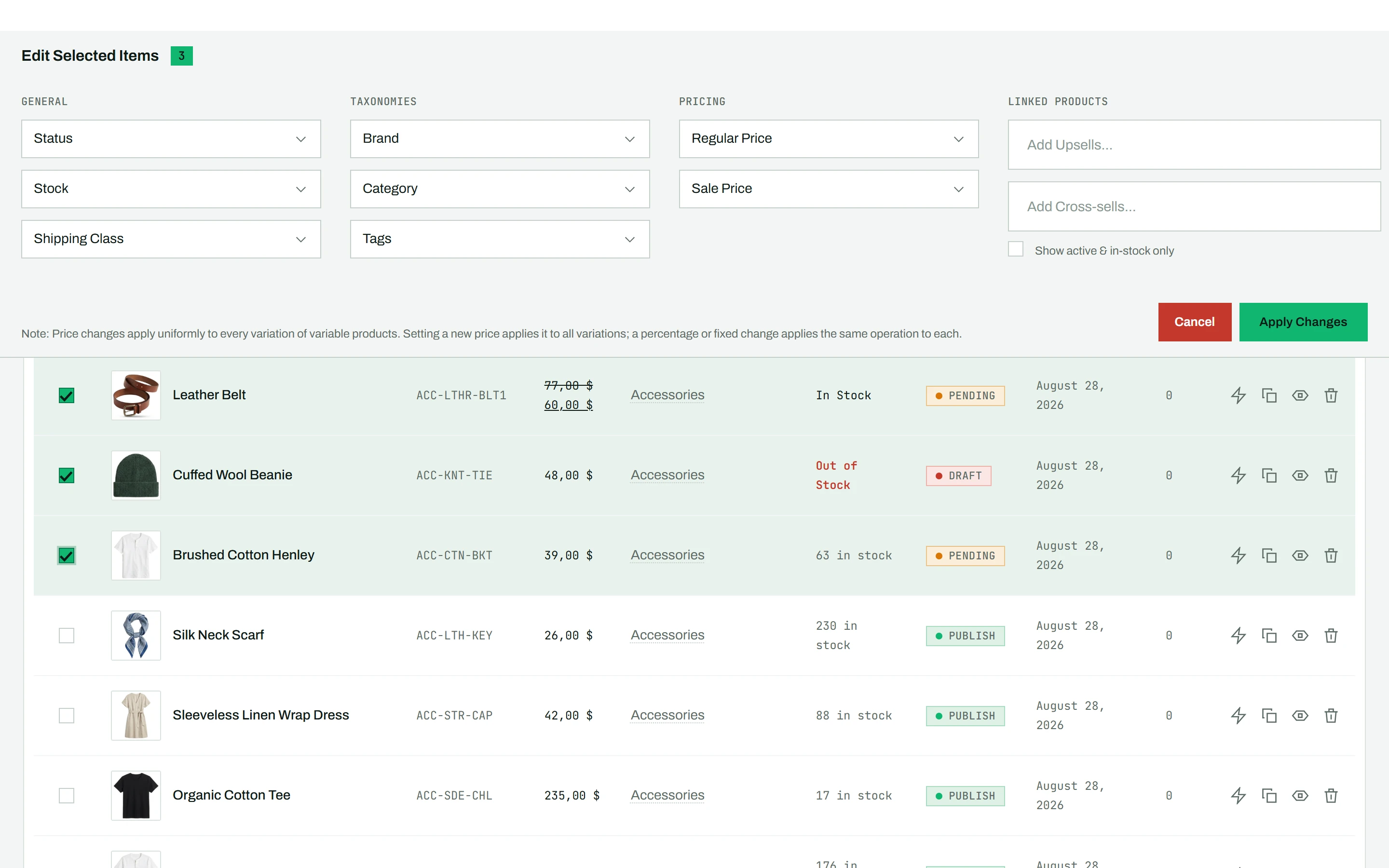
Selecting products
- Check the checkbox on each product you want to edit, or
- Check the header checkbox to select every product on the current page.
Narrow the list with the filters first to select exactly the set you want.
Using the bulk action bar
When products are selected, a fixed bar slides in at the top showing how many are selected. You can change:
General settings
- Status: Published, Draft, Pending, or Trash
- Stock Status: In Stock or Out of Stock
- Shipping Class
Taxonomies
- Brand
- Categories: choose Replace (overwrite existing) or Add (keep existing and add new)
- Tags: same Replace or Add options
When you reopen the categories or tags list, the ones you already chose appear first.
Pricing
- Regular Price: set a new price, or increase or decrease by a fixed amount or a percentage
- Sale Price: same options
Linked products (Pro)
- Upsells and Cross-sells: search and add products across the whole selection at once
Click Apply Changes to save. Only the fields you explicitly changed are updated; everything else stays the same.
Tip: For editing different values per product rather than one value across many, use Quick Edit per product, or Sheet Mode (Pro) for a spreadsheet view.