Trashing a product removes it from your store without deleting it, so you can restore it later. The Trash tab is where you review, restore, or permanently remove those products.
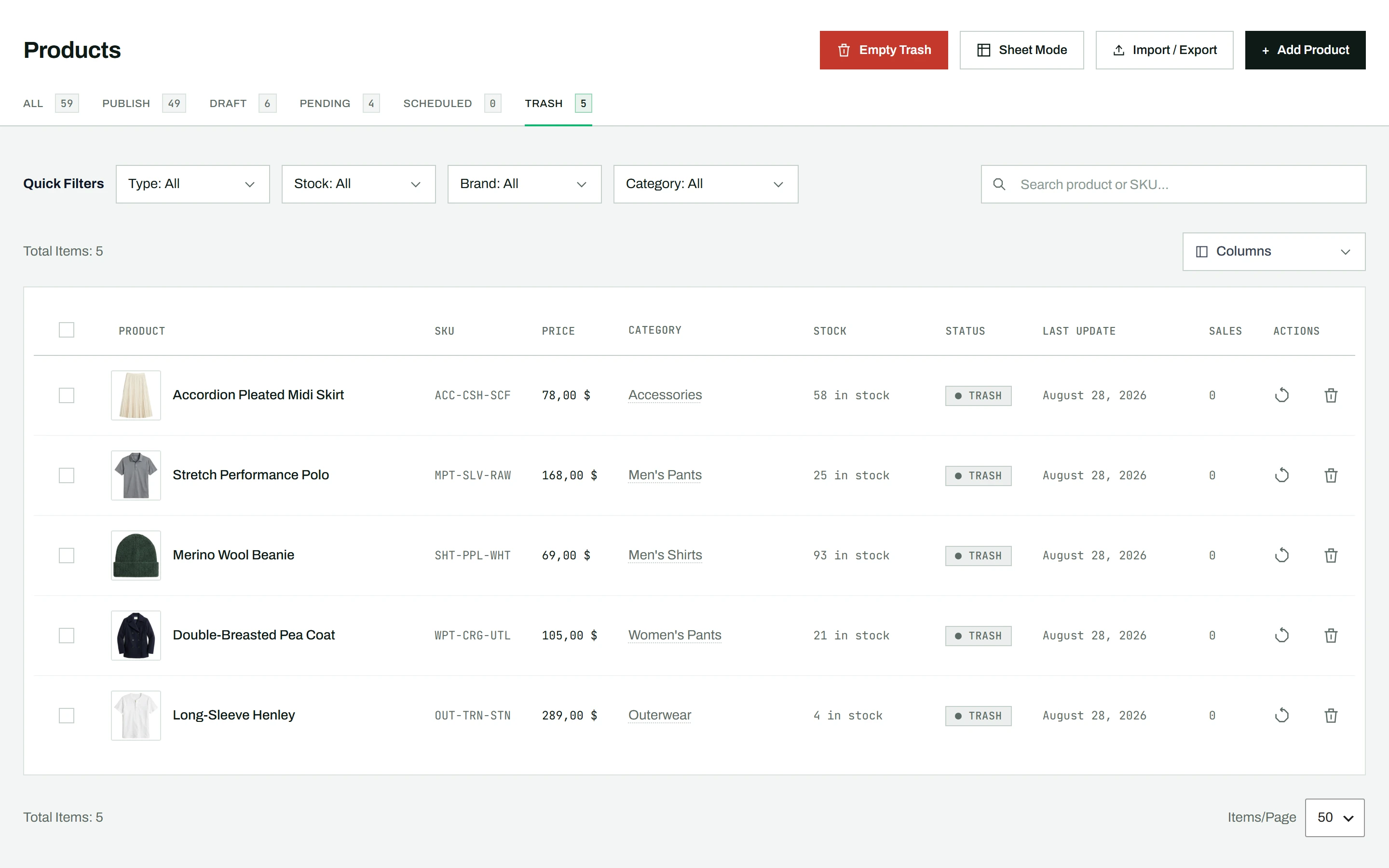
Opening the trash
Click the Trash tab at the top of the products page. It lists every product currently in the trash.
Restoring or deleting
- To restore a product, click the restore icon in the Actions column. It returns to your product list with its previous status and web address.
- To permanently delete a single product, click the trash icon and confirm.
- To empty the whole trash, click Empty Trash in the header. This permanently deletes every trashed product and cannot be undone.
A draft that was trashed before it ever had a web address comes back without one, and gets a clean address from its title when you publish it.
Note: Trashing is reversible; permanent deletion is not. A permanently deleted product, along with its variations and settings, cannot be recovered. To remove many products at once, send them to the trash first with bulk actions, then review before emptying.