Exporting your products to CSV gives you a portable, spreadsheet-friendly copy of your catalog. It is available in every version of CataLord, with no row cap.
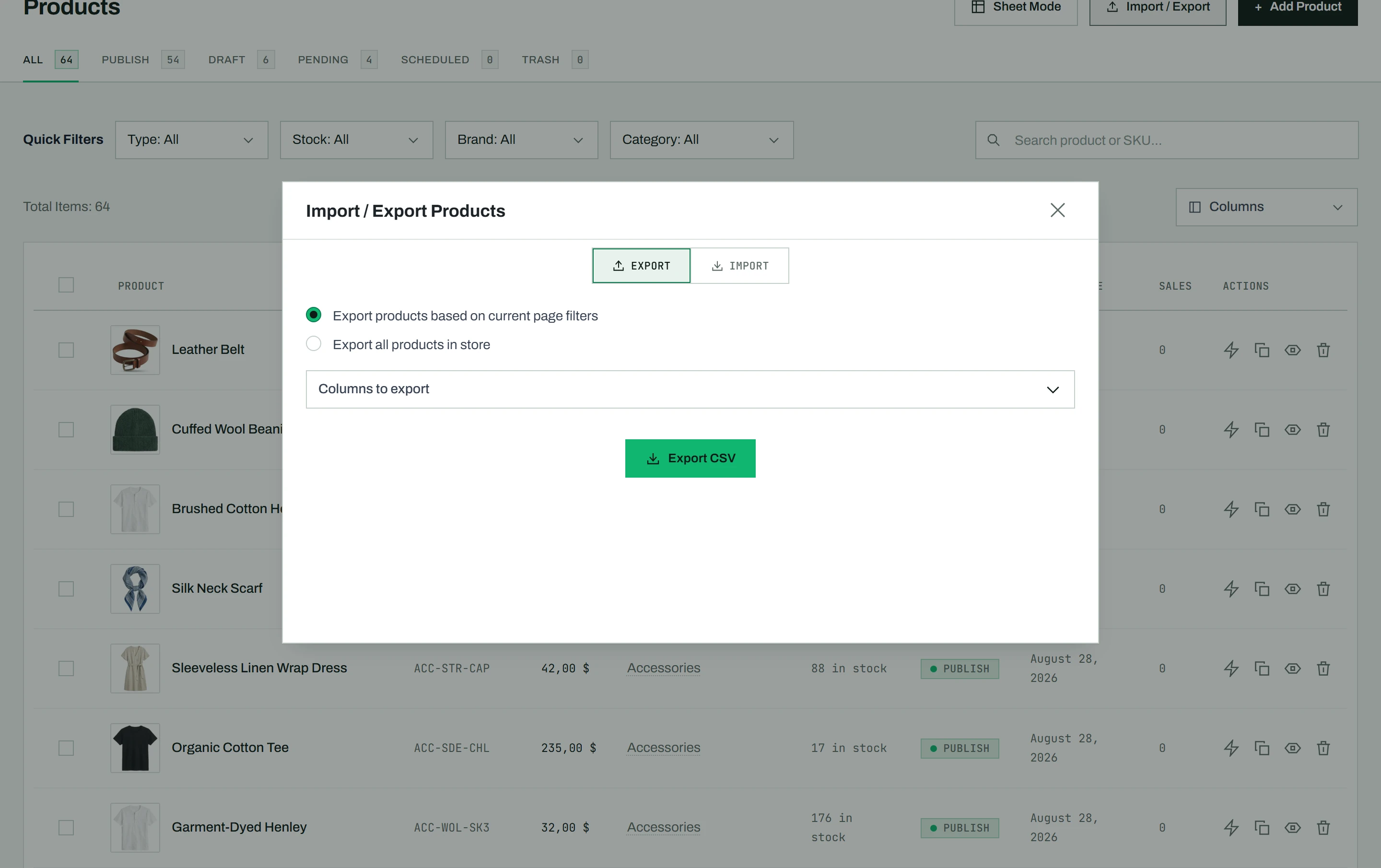
Export your products
- Go to CataLord > Products.
- Narrow the list to the products you want using search and filters. The export uses your current, filtered set.
- Open the Import / Export tools and start a CSV export.
CataLord exports exactly the products currently shown by your filters, so you can export a single category, a search result, or your whole catalog just by changing what is on screen first.
No row cap
There is no limit on how many rows you can export. A large catalog exports in full in a single file.
WooCommerce-compatible format
The file uses WooCommerce’s native CSV column format, so it opens cleanly in a spreadsheet and works with tools that expect the standard WooCommerce layout.
Round-trips through import
An export re-imports cleanly back through CataLord’s importer (Pro). Product types, download columns, and identifiers like GTIN survive the round trip, so exporting and re-importing does not quietly change your data.
Tip: Exporting a handful of products is the quickest way to see the exact column format the importer expects before you build an import file from scratch.