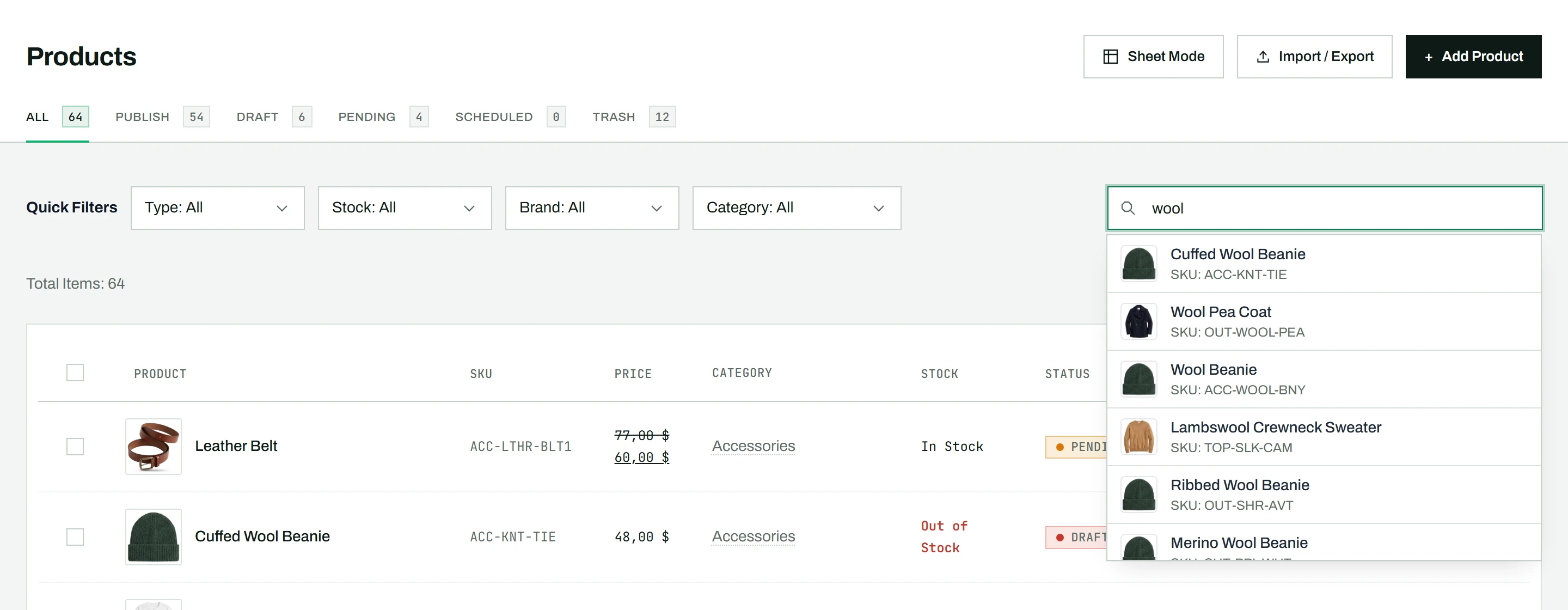
CataLord includes a live search that finds products as you type, with no need to press Enter and wait for a page reload. It is the fastest way to jump to a specific product in a large catalog.
How it differs from WooCommerce search
The native WooCommerce products list searches only after you submit the form and reload the whole page. CataLord searches instantly as you type and shows matches in a dropdown, so finding a product takes a second rather than a full round trip.
Searching for a product
- Click the search bar at the top of the products page.
- Start typing a product name or SKU (at least 2 characters).
- A dropdown appears instantly, showing matching products with their thumbnail, name, and SKU.
- Click a result to jump straight to that product’s edit page.
- Press Enter to filter the entire product list by your search term instead.
- Use the arrow keys to move through results, and Enter to open the highlighted one.
The dropdown loads more results as you scroll, so you can browse through hundreds of matches without leaving the page.
Search while editing
The same search sits in the header of the product edit page, so you can jump to another product without returning to the list. To move through products one at a time instead, see navigating between products while editing.
Tip: If you know roughly what you are after but not its exact name, use the filters to narrow the list by category, brand, type, or stock status, then search within the result.