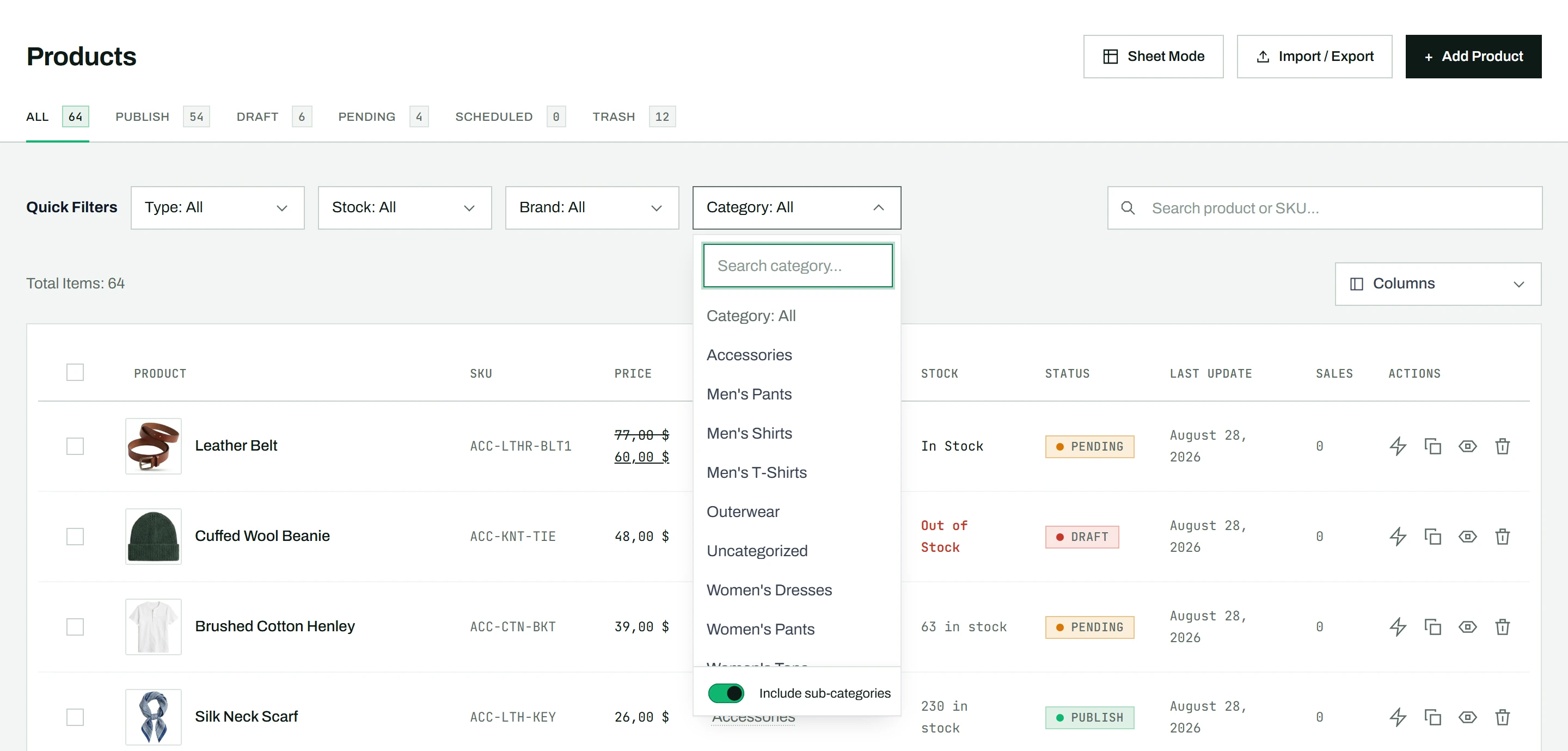
CataLord offers four filter dropdowns to narrow down your product list. You can combine them, and every active filter is shown as a chip you can remove with one click.
By product type
Click the Type dropdown and choose Simple Product or Variable Product to show only that type.
By stock status
Click the Stock dropdown and choose In Stock or Out of Stock.
By brand
Click the Brand dropdown. A search box appears inside it, so you can type to find a brand quickly, then click to select it.
By category
Click the Category dropdown. Your categories appear in a tree structure that shows parent-child relationships, with a search box at the top to find a category by name.
Seeing and removing active filters
When filters are active, small chips appear above the product table showing exactly what is filtered (for example “In Stock”, or “Category: Clothing”). Click the X on any chip to remove that filter, or click Clear all to reset everything at once.
Working on a filtered set
Filtering also defines the set you act on next: narrow the list, then apply a bulk action to everything you have selected, or sort the filtered results. To find one specific product instead, use live search.
Tip: Need to filter by a column these dropdowns do not cover, such as price, stock quantity, or a custom field? Sheet Mode (Pro) adds a per-column filter on every column, with richer options like ranges and “has value / empty”.