You can choose which columns appear in your product table, so the list shows only the information you care about.
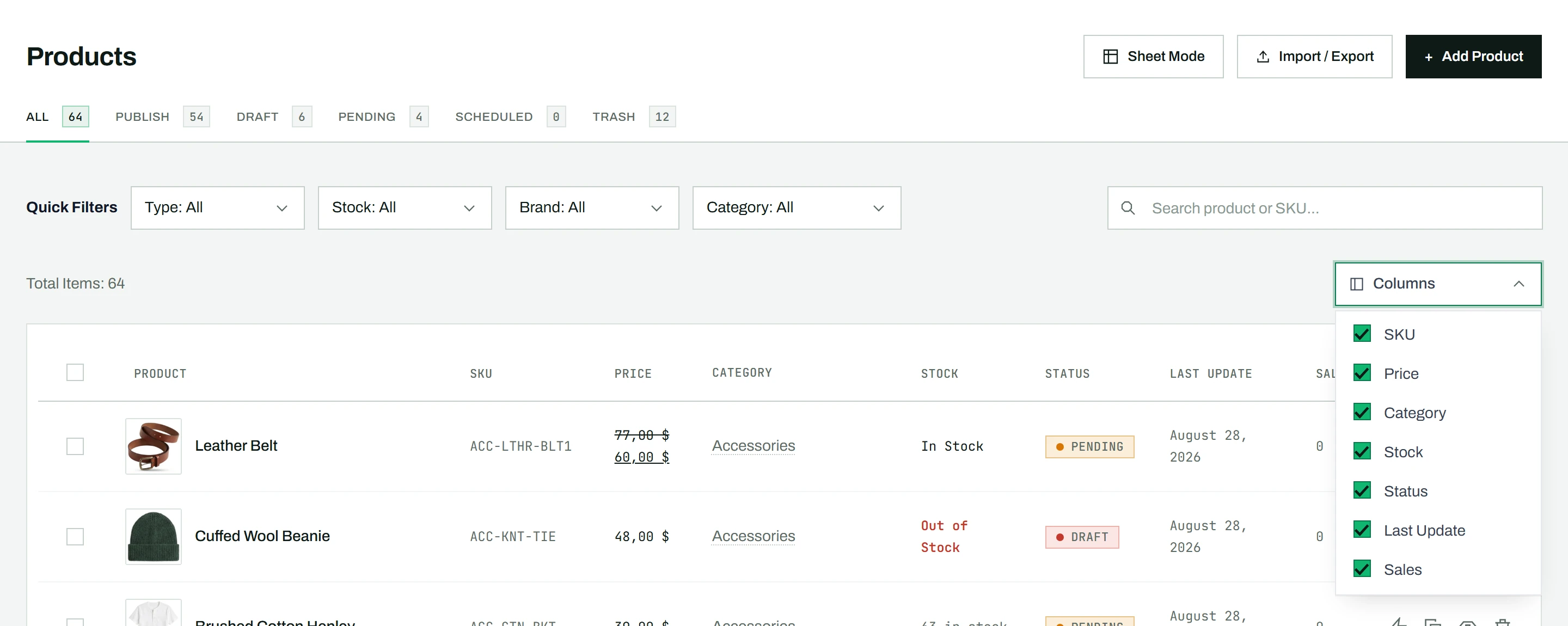
Show or hide a column
- Click the Columns button above the table, on the right.
- A dropdown shows a checkbox for each column: SKU, Price, Category, Stock, Status, Last Update, and Sales.
- Uncheck a column to hide it, or check it to show it again.
Your choice is saved in your browser and kept across sessions, so you do not need to set it again each visit.
Which columns can be sorted
Most visible columns are also sortable: click a column header to sort by it. The Sales column, which ranks products by units sold, is a Pro feature.
Tip: For editing many products across many columns at once, open Sheet Mode, which has its own richer column controls, including freezing and reordering.