The Taxonomy Manager gives you full control of your product categories from one screen, without leaving CataLord for the WooCommerce category admin.
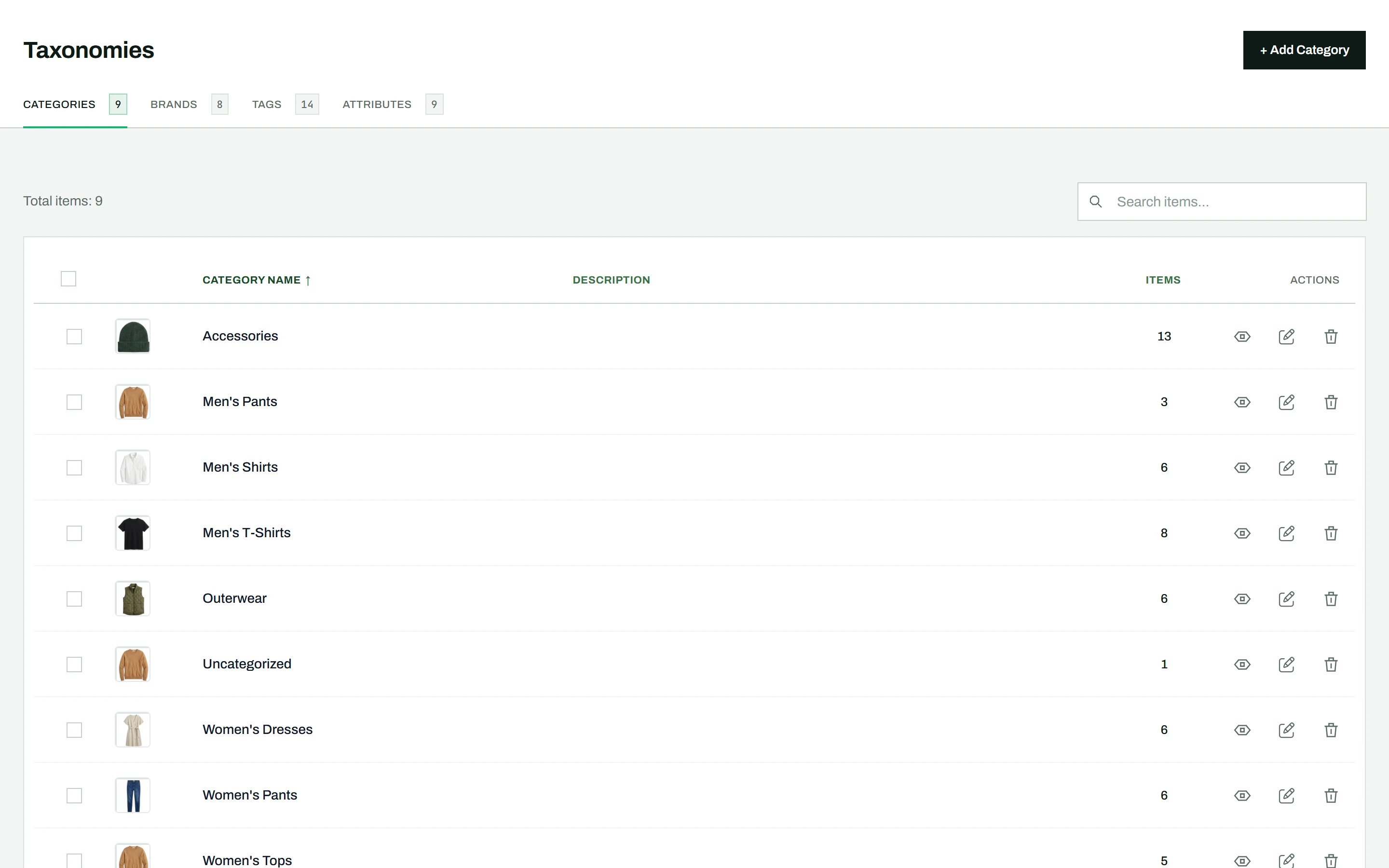
Opening the manager
Go to CataLord > Taxonomies. The Categories tab is shown by default.
Creating a category
- Click + Add Category.
- Enter a name (required). Duplicate names are detected before saving.
- Optionally set a slug, parent category, description, and thumbnail image.
- Click Save Changes.
Editing and deleting
Click the category name or the pencil icon to edit; the modal opens pre-filled with the current data. To delete, click the trash icon on the row and confirm, or check multiple categories and use the bulk action bar for bulk deletion.
Searching and sorting
Use the search box to filter categories instantly, with no server reload, and click any column header to sort by name, description, or item count.
Seeing the whole hierarchy: Category tree view
Turn on the Category tree view switch next to the search box to see every category in its place: parents first, their subcategories indented beneath them and joined by guide lines. The whole tree is shown on one page, with no pagination.
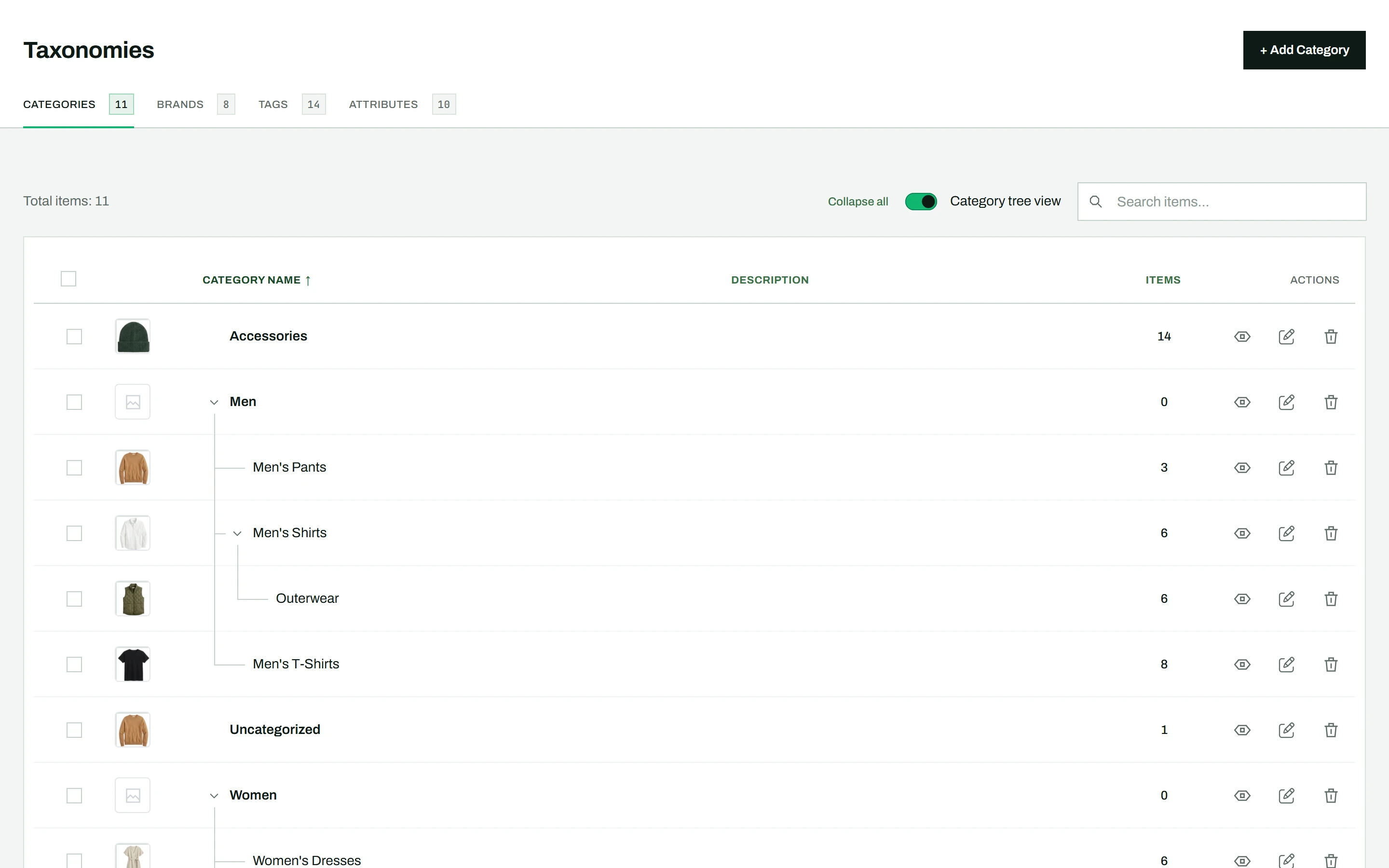
- Fold a branch: click the arrow beside a parent category to hide or show its subcategories. Collapse all and Expand all do the same for the entire tree.
- Sorting: clicking a column header sorts the categories inside each level, so subcategories always stay under their parent.
- Searching: the results show each matching category together with its parent categories, dimmed, so you can see where the match sits in the tree.
- Editing, deleting, bulk selection and the Items link work exactly as in the regular list.
Your choice of view, and which branches are folded, are remembered in your browser for the next visit.
Good to know: the tree view is part of the free version. It appears on the Categories tab only, on desktop-width screens. In stores with more than 2,000 categories the switch is disabled and the regular paged list is used.
Tip: The Items count is clickable, and opens the product list filtered to that category. Tags and brands are managed the same way on their own tabs: see tags and brands.