Variable products let you offer different versions of one product, for example a shirt in several colors and sizes. CataLord builds them from a single screen: define your attributes, generate the combinations, then set the details per variation.
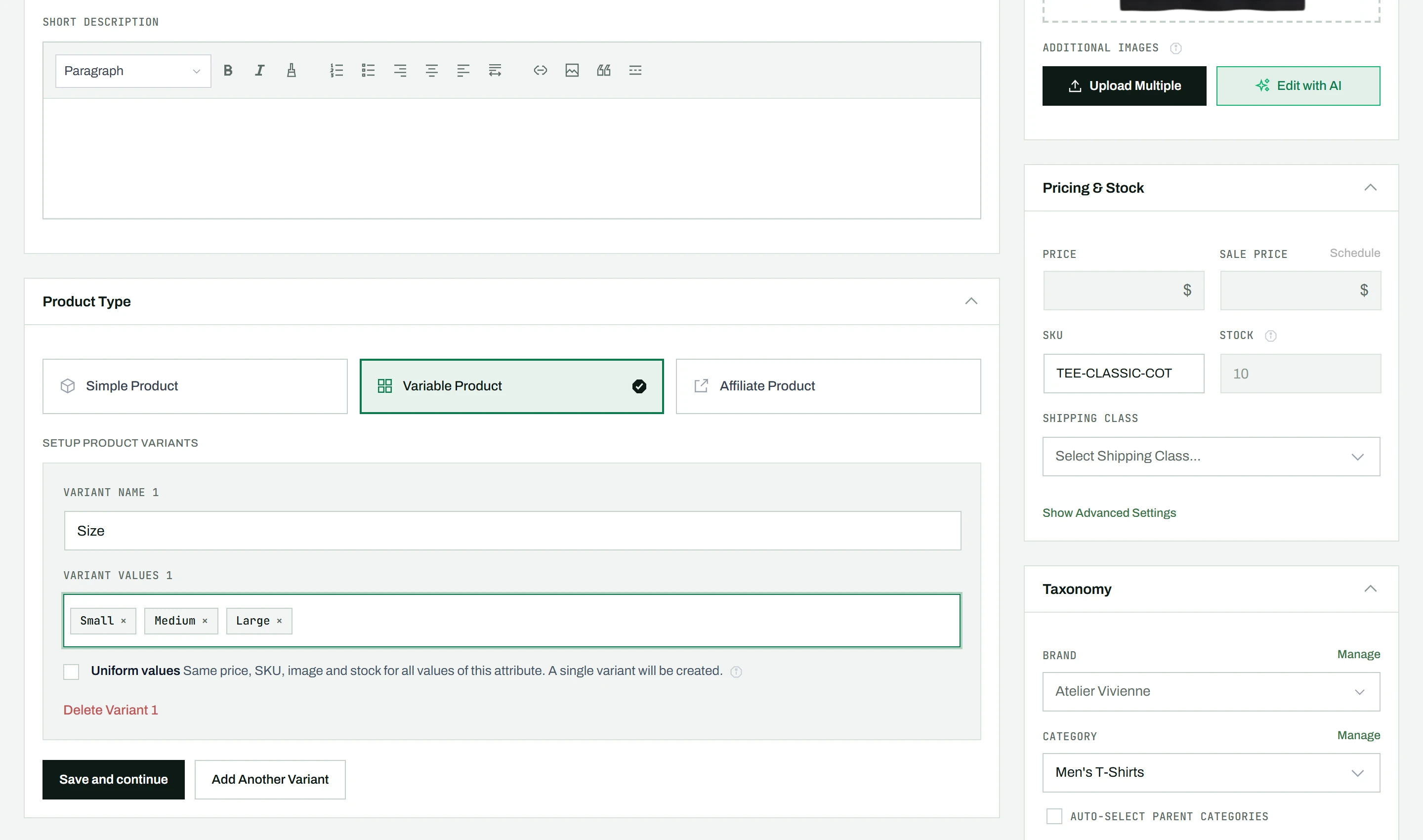
Step 1: Enable variants
Toggle Product With Variants on. The price and stock fields in the sidebar are disabled, because those values are now set per variation instead of on the product.
Step 2: Define attributes
- In the Variant Name field, type an attribute name (for example “Color”). If the attribute already exists in WooCommerce, it appears in the autocomplete dropdown.
- In the Variant Values field, enter the possible values separated by commas (for example “Red, Blue, Green”). Each value becomes a chip.
- Click Add Another Variant to add more attributes (for example “Size” with “S, M, L”).
Combining more than one attribute generates every combination for you. See building a multi-attribute variable product for the details.
Step 3: Generate variations
Click Save and continue. CataLord generates all combinations (Red S, Red M, Red L, Blue S, and so on).
Limit: Up to 50 variation combinations can be generated at once. If your attributes would produce more, you see a warning.
Step 4: Set variation details
Each variation appears in its own accordion panel. Click a panel to expand it. By default it shows the settings you change most often:
- Image, a variation-specific product image
- Price and Sale Price (with an optional sale schedule)
- SKU, a unique identifier for this variation
- Stock, the quantity for this variation
To keep the panel uncluttered, the less common settings are tucked behind a Show Advanced Settings link on each variation. Click it to reveal:
- Virtual product (no shipping needed)
- GTIN, UPC, EAN, or ISBN barcode
- Shipping class (defaults to “Same as parent”)
- Weight and dimensions (length, width, height)
- Backorders (do not allow, allow but notify, or allow)
- Low stock threshold
- Tax class (shown when taxes are enabled)
Later on you can edit or remove attributes or delete a single variation, and the variation list updates to match.