A basic variable product uses a single attribute dimension, for example just Color or just Size. The Variant Builder also lets you combine several dimensions, such as Color and Size together, and generate every combination automatically. This is part of the free plugin.
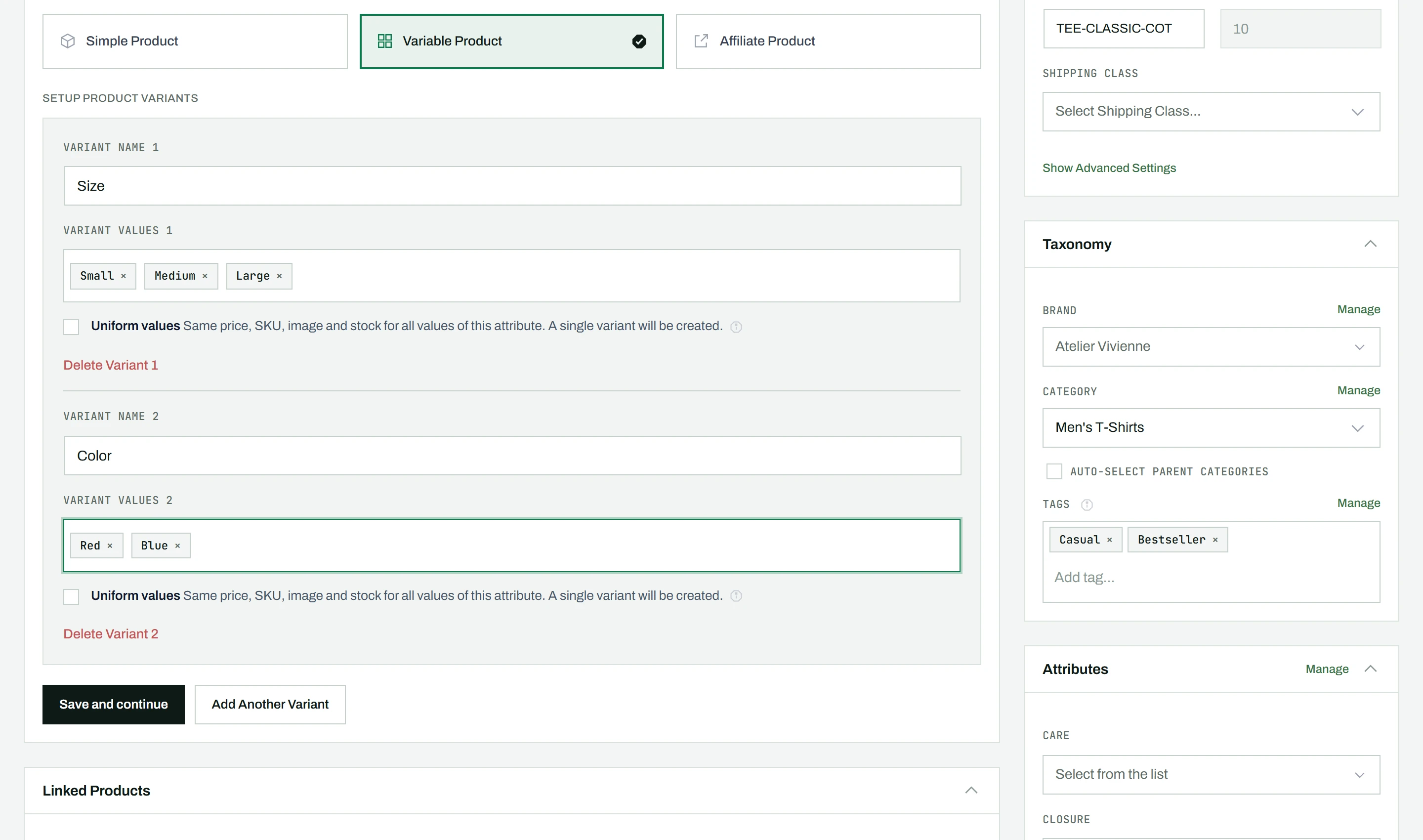
Adding a second attribute dimension
- Open the product in the CataLord editor and turn on Product With Variants.
- Type your first attribute and its values as chips, for example Color: Red, Blue.
- Add another attribute row, for example Size: S, M, L.
- Generate the variations. CataLord builds every combination automatically (Red S, Red M, Blue S, and so on).
New to variable products? Start with creating a variable product with variations for the single-attribute basics, then come back here to add more dimensions.
The “Any” variant pattern
When one variation should apply across every value of an attribute rather than a single specific value, use the Any pattern for that attribute. This lets one variation cover a whole dimension instead of forcing a separate row per value.
Automatic inheritance
When new variations are generated, CataLord fills their details by inheriting from the closest existing variant, copying values such as price, stock, and image from the best-match donor. That means you refine pre-filled rows instead of starting each one from blank.
Cleanup and ordering
- Orphan cleanup: when a variation references an attribute or value that no longer exists, CataLord flags it and can clear out those invalid combinations automatically.
- Drag-to-reorder variations is a Pro feature: grab a variation’s handle and drag it to change the order variations appear in.
Tip: To change the attributes after generating, use Edit Attributes; to remove a single combination, see deleting a variation.