Pro This feature is part of CataLord Pro, and it is included in the 14-day free trial.
You can tailor the Sheet Mode table to the job at hand by choosing which columns show, and in what order and width.
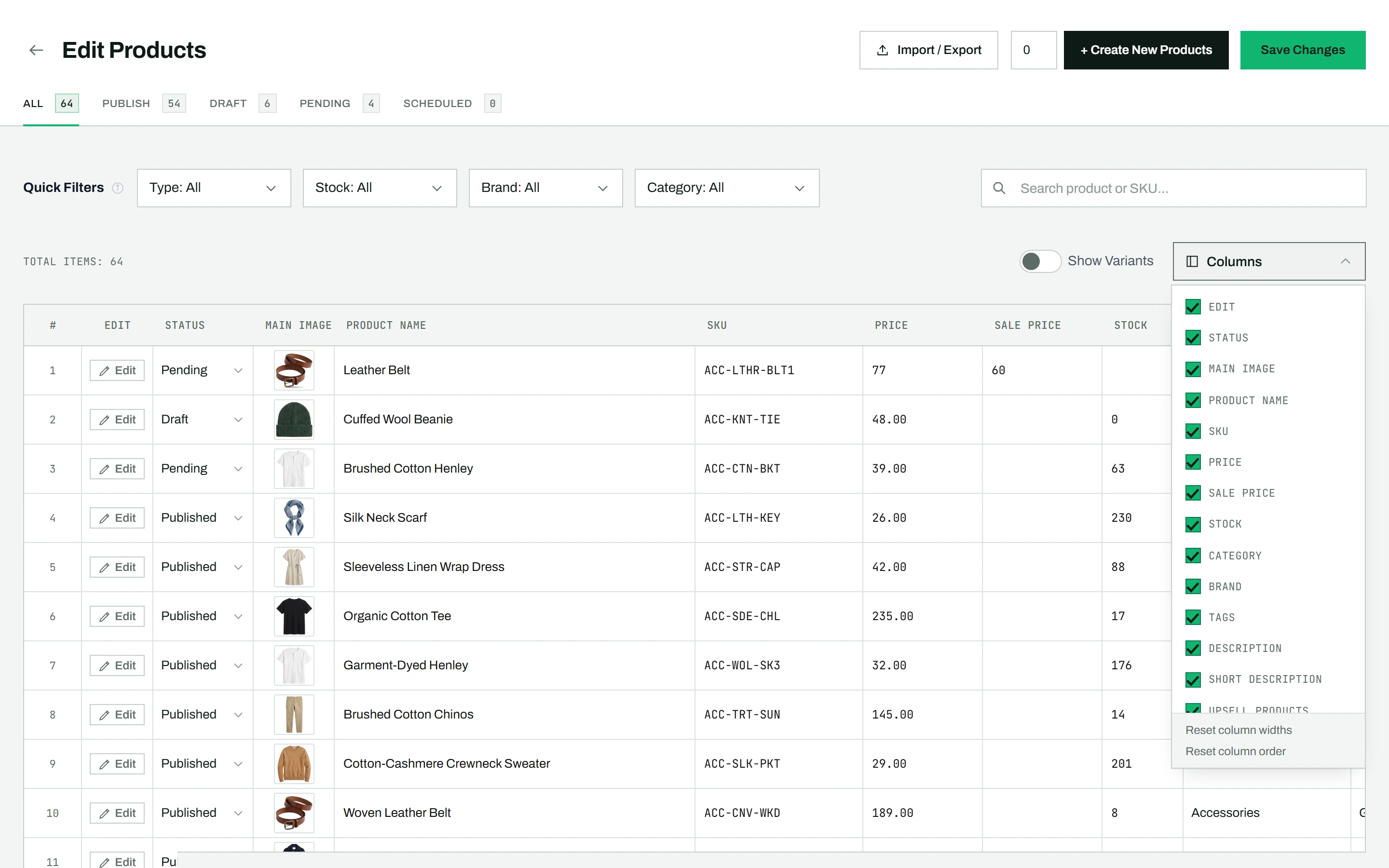
Showing and hiding columns
- Click the Columns button in the toolbar.
- Uncheck any column to hide it, or check it to show it again.
- At least 2 columns must stay visible.
Reordering and resizing
Click and hold a column header, then drag it left or right to a new position. To resize, drag the right edge of any column header to make it wider or narrower.
Resetting
From the Columns dropdown:
- Reset column widths restores all columns to their default widths.
- Reset column order restores the original sequence and unfreezes any frozen column.
All your column settings are saved in your browser and kept across sessions.
Tip: On a wide table, freeze a column so a key value stays in view while you scroll sideways.